Tutorial: Structural Beams

About Beams

It is a good practice to add columns and grids before creating beams in the project. Beams are placed below the current level. So, if you would like to place beams under the first floor slab, you must go to first floor plan/select first floor level as the placement level, in order to add beams.

Tutorial Objective:

Before moving onto this tutorial, please make sure that you are already familiar with, how to load a family into the project , how to duplicate and create new type for a family, Trim/Extend to Corner  and Trim/Extend to Single Element tools and Create similar tool.

In this tutorial, you will learn,

Sample Problem:

Add beams under the first floor slab level as shown in Fig 1.

M2 Beams Tutorial
Fig 1. Placement of beams in the sample tutorial project
  • UB-Universal Beam: 254x146x43UB between Grid B4 to C4
  • Concrete_Rectangular Beam: 230mm x 420mm placed as shown in Fig 1.

Sample Files required for this tutorial:

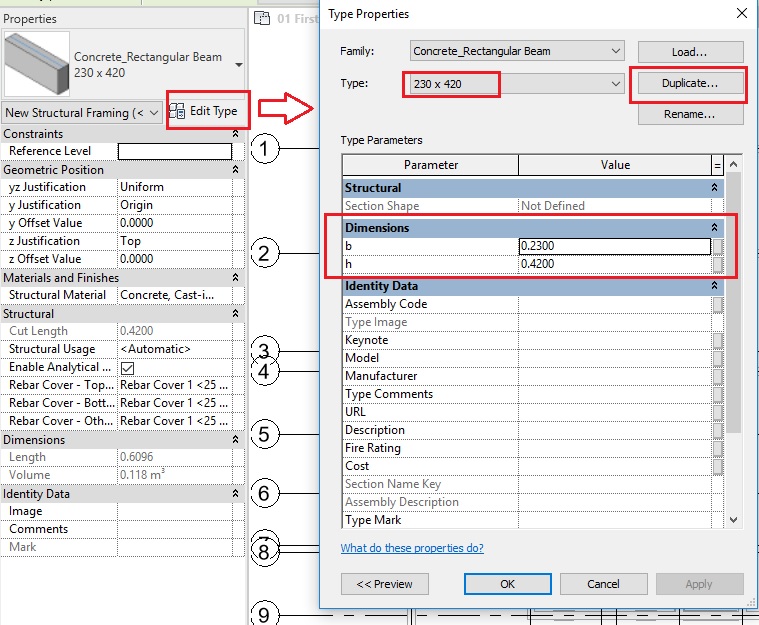
If you do not have the following files, please download them from here.

  1. “TutorialBeams_Input_LearningRevitOnline.rvt”
  2. Beam/Structural Framing Family files: “UB-Universal Beam.rfa” and “Concrete_Rectangular Beam.rfa”

Solution:

  1. Open tutorial file ‘TutorialBeams_Input_LearningRevitOnline.rvt’ in Revit. This project file already contains levels, grids, walls and a column on ground floor level.
  2. Navigate to the floor plan of  “01 First Floor Level”. Ensure that you can see the ground floor layout as Underlay.
    • Underlay is like a sheet of drawing put underneath another to use as a reference. It helps in understanding the relationship of components at different levels for coordination and construction.
  3. If you cannot see the Ground floor layout as an underlay, do the following.
  4. To create an underlay:

    • In the Project Browser, open a plan view. (In this case, “01 First Floor Level”).
    • Go to the properties palette.
    • Go to the parameter “Range: Base Level” and select the level you want to underlay. In this case, select “00 Ground Level” as we want to see the layout of the Ground level as underlay.
    • “Range: Top Level” parameter is automatically set to one level above the Base Level. If you want to set a different level as the top range, select the level from here.
    • Ground level is now shown as underlay in halftone. M2 Beams 1
    • If you want to avoid mistakenly selecting the elements displayed in Underlay, you can turn off the “Select Underlay Elements”option on the status bar. Turn it on, if you want to select the elements in underlay.M2 Beams 2
  5. Let’s first add structural steel beam of the “UB-Universal Beam” family between Grid B4 to C4 as shown in Fig 1.
  6. Load the family “UB-Universal Beam.rfa” into the project.
  7. To add a structural beam/framing:

    • Go to Structure tab -> Structure panel -> Beam
      • Alternatively, use “BM” as the keyboard shortcut .
    • From the type selector, select the type 254x146x43UB of the UB-Universal Beam family you loaded in step 6.
    • On the options bar, select the Placement Level as First Floor Level.
    • On the options bar, select the structural usage of the beam as ‘Other’ . Revit will automatically assign this value based on which elements the beam is connecting.
    • In the drawing area, draw the beam from the grid intersection B-4 to C-4.
    • Click Esc twice to end the Beam tool.
    • As the beam is constructed under the first floor level (the top of beam matches with first floor level line), it is shown as an underlay element in halftone.M2 Beams 3
  8. The beam, although added at the grid intersection B-4, may not extend upto the middle of the steel column. This is mainly because Revit has assumed the space for connections. However, if you would like to extend the beam to the center of the steel column, then select the beam.
    • Go to Modify|Structural Framing tab -> Join Tool panel -> Change Reference.
    • Select the face of the column that you would like the beam to connect to. M2 Beams 4
    •  Click Esc twice to end the Modify tool.
    • TIP: Click and drag shape handles at the beam ends to adjust their end extensions or cutback. Learn more about how to use Shape handles here.
  9. Go to a 3D view to visualize the output. M2 Beams 17
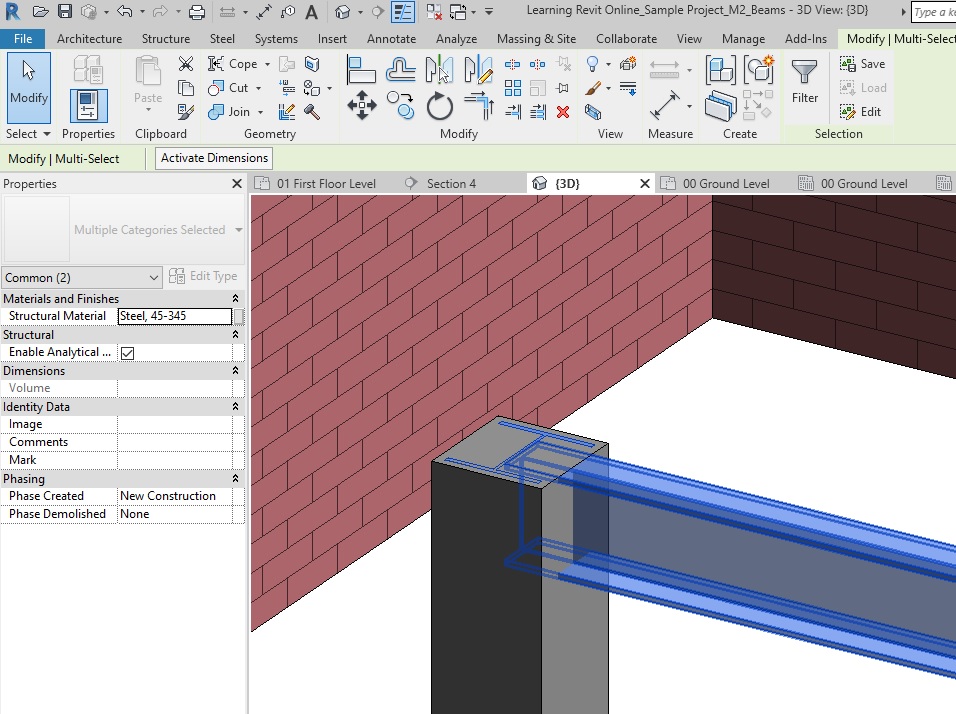
  10. Now, let’s move on to add Concrete beam of “Concrete_Rectangular Beam” family as shown in Fig 1. Navigate back to the First Floor level floor plan and load the family “Concrete_Rectangular Beam.rfa” into the project.
  11. Go to Structure tab -> Structure panel -> Beam
    • Alternatively, use “BM” as the keyboard shortcut .
  12. From the type selector, select any one type of the Concrete_Rectangular Beam family you loaded in step 9.
  13. Duplicate the existing type and create a new type of beam (named 230 x 420) that has width(b) = 230mm/0.23m and depth (h) = 420mm/0.42mM2 Beams 5
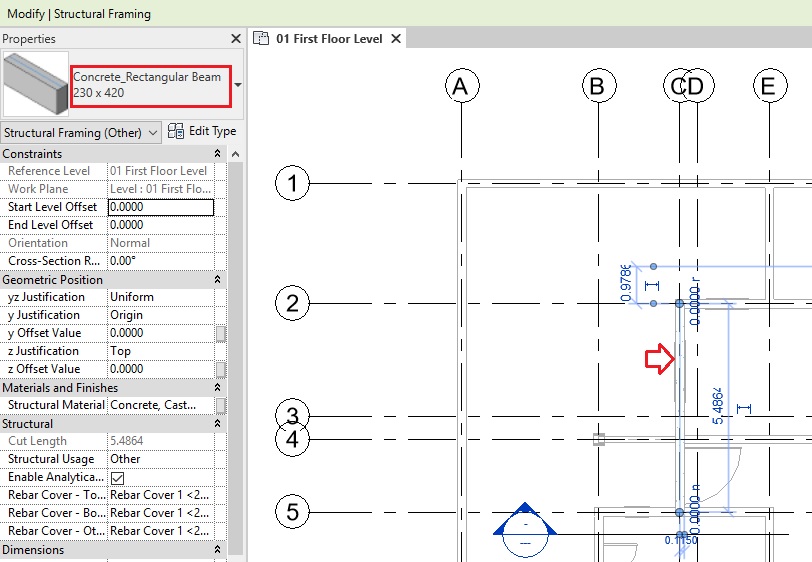
  14. Repeat step 7, to add beams from Grid intersection C-2 to C-5.M2 Beams 6.jpg
  15. Add a section line as shown below to see the beam in a section view.
  16. Go to the section view and notice that the beam is added so that the top of the beam matches with the first floor level as required.
  17. However, the walls and the beams are overlapping. In reality, the top of the wall shall match the bottom of the beam. One approach to resolve this is to use ” Join Geometry” tool. However, be careful with this tool as overusing it can use more memory and can cause unexpected issues, especially in large scale projects. The other approach is to use an offset value for the top constraint of the wall as shown below.
  18. To adjust the height of the wall using offset values:

    • Select the wall.
    • Go to the Top Offset parameter in the Instance properties of the properties palette.
    • Add the value you would like to adjust. (In this case, as the beam depth is 0.42m and we want the wall to lower the value from the top constraint level, add offset value as “-0.42m” )
    • The wall height will adjust accordingly.M2 Beams 9
  19. Now, notice that as this beam is not connected to structural columns, but instead it is on a wall, the wall shall also be a structural load-bearing wall. However, currently in the project, the wall is an architectural wall.  You can see this by selecting the wall and checking its Structural Usage parameter in the Instance properties. M2 Beams 10
  20. To convert architectural walls into structural walls:

    • Select the wall.
    • Go to its Structural parameters in the Instance properties.
    • Turn on the checkbox for the ‘Structural’ parameter.
    • Under Structural Usage parameter, select ‘Bearing’.
    • Now, the wall is converted to a structural load-bearing wall.
      • Note: You can avoid this step, if you already know from the beginning which walls are going to be structural walls. In that case, you can sketch walls using the tool:
        • Architecture tab-> Build Panel -> Wall Drop down menu -> Wall: Structural
  21. Now, add more Concrete_Rectangular Beam family of 230×420 type in the project as shown in Fig 1. You may use Modify tools such as Trim/Extend to Corner  or Trim/Extend to Single Element tools to create junctions between beams.
    • TIP: For more productive approach, instead of using Beam tool to sketch beams, use ‘Create Similar‘ tool. Using Create Similar tool makes your workflow more productive when you want to create more instances of the same type which you have already used once in the project. This saves you time to look for the right type of family in the type selector.
      • To use create similar tool, select the beam that you already placed -> go to create similar tool in Modify panel (“CS” as keyboard shortcut) -> the beam tool is active and the same type of beam has been selected in the type selector -> Now, you can begin adding beams as shown in step 7. To learn more about how to use create similar tool, click here.
    • TIP: When the Beam tool is active, on the options bar, turn on “Chain” option to add multiple beams in a continuous loop.
  22. After adding all the beams as shown in Fig 1, go to a 3D view for a clear visualization. M2 Beams 11
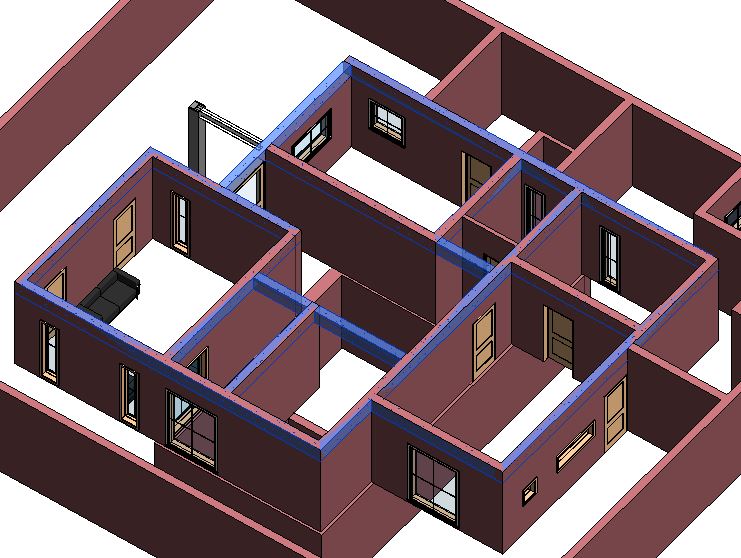
  23. Now, select all the walls that are under the beams. Repeat step 18 to adjust the height of the wall and step 20 to convert these walls into structural load-bearing walls.
    • TIP: While selecting multiple walls, press Ctrl to add walls to the selection and press Shift to remove walls from the selection.
    • TIP: Hover the mouse over one of the walls -> Press Tab to highlight the connected walls -> Click to select the highlighted walls.
    • TIP: To make the selection of multiple walls easier, you can also use Temporary Hide/Isolate tool to hide or isolate the walls and beams temporarily.
    • Temporary Hide/Isolate tool:

      • To isolate category temporarily: 
        • Select one of the element for which you would like to isolate the category.
        • In this case, select one of the walls and one of the beams.
        • Go to View Control bar -> Temporary Hide/Isolate -> Isolate Category.
        • All the beams and walls in the view will be isolated.
      • To hide elements temporarily:
        • Select the elements that you wish to hide.
        • Go to View Control bar -> Temporary Hide/Isolate -> Hide Element
        • The selected elements will be hidden.
      • To reset Temporary Hide/Isolate view:
        • Go to View Control bar -> Temporary Hide/Isolate -> Reset Temporary Hide/Isolate
  24. After adjusting the wall height and their structural usage, go to a 3D view to see all the beams you have added.M2 Beams 16
  25. After completing all the steps above, Save As your project as  ‘TutorialBeams_Output_LearningRevitOnline.rvt’.

More about Beams:

Tutorial: Columns

About Columns

There are two types of columns in Revit:

  1. Structural Columns
  2. Architectural Columns

As their name suggests, use the structural columns to add load-bearing vertical elements to the model and use architectural columns to add decorative vertical elements. Structural elements such as beams, braces, and isolated foundations join to structural columns; they do not join to architectural columns.

Tutorial Objective:

Before moving onto this tutorial, please make sure that you already know how to load a family into the project and create new type for a family (example as shown in the tutorial for doors).

In this tutorial, you will learn,

Sample Problem:

Add an architectural column surrounding the structural column on Grid B-4 in the Ground Floor layout as shown below.

  • Height of both columns: Ground Level to First floor level
  • Structural Column: UC-Universal Column Type 254x254x73UC
  • Architectural Column: Architectural-Column-Rectangular type 300 x 300

Sample Files required for this tutorial:

If you do not have the following files, please download them from here.

  1. “TutorialColumns_Input_LearningRevitOnline.rvt”
  2. Column Family files: “UC-Universal Column.rfa” and “Architectural-Column-Rectangular.rfa”

Solution:

  1. Open tutorial file ‘TutorialColumns_Input_LearningRevitOnline.rvt’ in Revit. This project file already contains levels, grids and walls on ground floor level.
  2. Navigate to the floor plan of  “00 Ground Level”.
  3. Load the families “UC-Universal Column.rfa” and “Architectural-Column-Rectangular.rfa” into the project.
    • Click Insert tab -> Load from Library panel -> Load Family -> Navigate to the folder where above families are located on your computer -> Select them -> Open.
  4. To place a structural column:

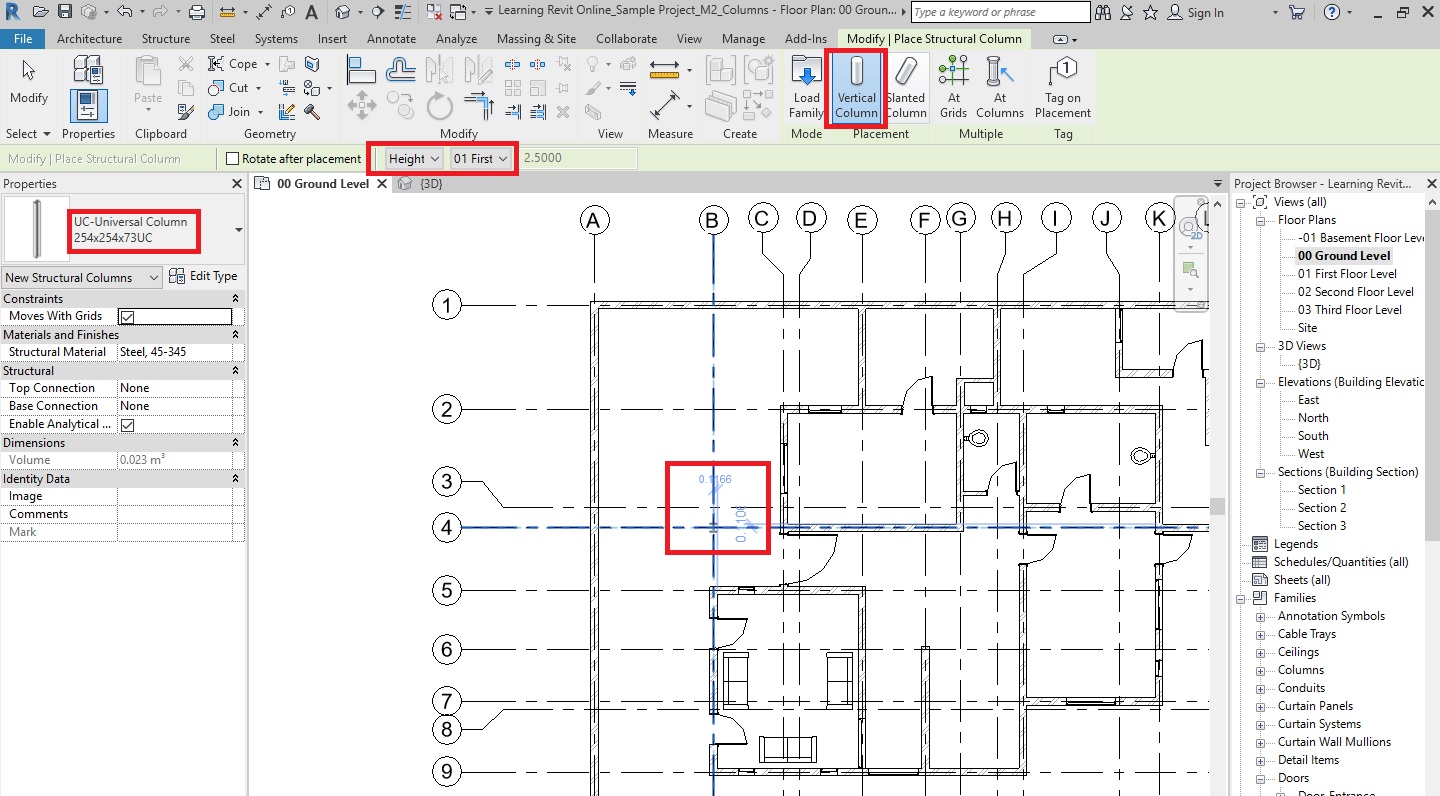
    • Go to Structure tab -> Structure panel -> Column
      • Alternatively, use “CL” as the keyboard shortcut .
    • From the Modify|Place Structural Column tab , select vertical column.
    • From the type selector, select the type 254x254x73UC of the UC-Universal Column family you loaded in step 3.
    • On the options bar, select the Height and constraint it to First Floor level.
    • In the drawing area, notice that column’s center automatically tries to snap at the grid intersections. Click at the grid intersection B-4 to place the column.M2 Col 1
    • Click Esc twice to end the Column tool.
  5. Now, we would like to place a rectangular architectural column that surrounds the structural column that we placed in step 4.
  6. To place an architectural column:

    • Go to Architecture tab -> Build panel -> Column drop-down -> Column: Architectural
    • From the type selector,select the type 300 x 300 of the Architectural-Column-Rectangular family you loaded in step 3.
      • If you do not have this type, create a new type by duplicating the existing one and changing the width and height value of the type parameters to 300mm.
    • On the options bar, select the Height and constraint it to First Floor level.
    • On the options bar, select the ‘Room bounding’ option. This will ensure that the boundary of the column is part of the boundary of the room along with other room bounding elements when you create a room.
      • Learn more about Room bounding elements here.
    • In the drawing area, notice that column’s center automatically tries to snap at the grid intersections. Click at the grid intersection B-4 to place the column.M2 Col 2
    • Click Esc twice to end the Column tool.
  7. Now, we have a structural column that is surrounded by an architectural column.
  8. Go to a 3D view to see these columns in a 3D.M2 Col 3
  9. After completing all the steps above, Save As your project as “TutorialColumns_Output_LearningRevitOnline.rvt”.

More about Columns:

  • How to Attach Columns with roofs, floors, ceilings, reference planes, structural framing members, isolated foundations, foundation slabs, and other reference levels.

Tutorial: Components

About Components

Components are those building elements that are usually delivered and installed on site – such as furniture, plumbing fixtures, lighting, etc. Components are loadable families, which need to be loaded in the project from your content library.

There are free standing components such as furniture or equipment placed on a floor/level. There are also host-based components which are dependent on a building element that acts as a host such as a wall lamp that has wall as its host. When a wall is moved/deleted, the dependent component is also moved/deleted. Usually, the wall, floor, level/work-plane, roof, ceiling or a face of an object work as a host for components.

Tutorial Objective:

In this tutorial, you will learn,

Sample Problem:

Add 3 instances of Furniture_Sofa.rfa and 2 instances of Plumbing_WC.rfa components to the Ground Floor layout as shown in Fig 1.

M2 Fur Tutorial
Fig 1. Placement of components in the Ground Floor layout of the sample project

Sample Files required for this tutorial:

If you do not have the following files, please download them from here.

  1. “TutorialComponent_Input_LearningRevitOnline.rvt”
  2. Component Family file: “Furniture_Sofa.rfa” and “Plumbing_WC.rfa”

Solution:

  1. Open ‘TutorialComponent_Input_LearningRevitOnline.rvt’ in Revit. This project file already contains doors and windows modeled in the Ground Floor levels.
  2. Navigate to the floor plan of  “00 Ground Level”.
  3. Load the component families “Furniture_Sofa.rfa” and “Plumbing_WC.rfa” into the project.
    • Click Insert tab -> Load from Library panel -> Load Family -> Navigate to the folder where above families are located on your computer -> Select them -> Open.
  4. To place a component:

    • Go to Architecture tab -> Build panel -> Place a Component
      • Alternatively, use “CM”as keyboard shortcut.
    • Select the type for the Furniture_Sofa family from the Type selector.
    • In the drawing area, place the sofa as shown below. Press Spacebar to change the orientation of the sofa. Do not worry about the exact position at the moment which can be adjusted after the sofa has been placed.M2 Fur 1
    • Click Esc twice to end the Components tool.
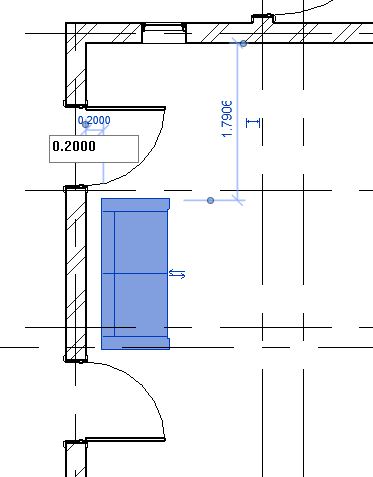
  5. Click on the Sofa that you have placed. Temporary dimensions will appear. Use these dimensions to locate the sofa 0.2m away from the edge of the wall behind it.M2 Fur 2
  6. Now, position the sofa exactly in the middle of the Grid 5 – 9 by using equality constraint as shown below.
    • To learn how to use equality constraint, click here.M2 Fur 3
  7. Repeat step 4-6 to place two more instances of sofa as shown below. M2 Fur 4
  8. Let’s now, place a WC in the toilet, which is a host-based (dependent on the wall) component.
  9. To place a host-based component:

    • Ensure that you have already loaded the family Plumbing_WC in your project.
    • Go to Architecture tab -> Build panel -> Place a Component
      • Alternatively, use “CM”as keyboard shortcut.
    • Select the type for the Plumbing_WC family from the Type selector.
    • In the drawing area, notice that you cannot place this component anywhere. If you take your cursor to a wall, only then you are able to place this component as it requires the wall as its host.
    • Click on the wall on Grid-G as shown below to place the WC in its position.M2 Fur 5
    • Click Esc to end the component tool.
    • Select the WC after placing it. Using the temporary dimensions, adjust the position of the WC to be 0.5m away from the inner face of the wall on Grid 2 as shown below. M2 Fur 6
    • Click Esc to deselect the component.
  10. Now, let’s create one more instance of the same type of WC in another toilet area of the project as shown below. However, instead of using a Component tool, you can use “Create Similar” tool to be more efficient.

    M2 Fur 8

  11. To use create similar tool:

    • As you want to make more instances of the same type of family, select the instance already in the model.M2 Fur 7
    • Go to Modify tab -> Create panel -> Create Similar ( OR “CS”as keyboard shortcut). If you have selected a component, Component tool will be active and the same type from the type selector will be automatically selected.
    • Now, you can continue to place more instances of the same type.
      • Create similar tool works across all Revit elements (ex. walls, grids, doors, etc), it immediately activates the tool required to create another instance of the same type selected of that particular family. Adds wonders to your productivity !!
  12. Adjust the position using temporary dimensions as required after placing the component.
  13. After placing a host-based component, if you would like to move it another host, Move tool will not be very effective. Instead, use “Pick New Host”tool.
  14. To move a host-based component to a different host:

    • Select the component you want to move.
    • Go to Modify tab -> Host panel -> Pick New Host tool.
    • Select a different host element for the component and place it at the required position.
      • Note: If the component is wall-based, you can only select a new host for that component to be a wall. It cannot be placed to a different category of host for which it has not been created.
    • Click Esc to end the Pick New Host tool.
  15. After completing all the steps above, Save As your project as “TutorialComponent_Output_LearningRevitOnline.rvt”.

More References:

Some of the popular online libraries to download Revit components are:

Tutorial: Windows

About Windows

Windows can be added in plan, elevation, section or a 3D view. Windows are loadable families, which means that the family of the Window (sizes, shapes, design) can be customized and placed in the library to load them in your project.

Windows are dependent elements on their host which is usually a wall. Like in real life, a window cannot be placed if there is no wall on site. Similarly, in Revit, a Window cannot be placed without a wall.

Tutorial Objective:

Modeling windows is similar to modeling doors. Thus, it is recommended that you familiarize yourself with tools and techniques shown in the chapter Modeling Doors before starting this tutorial.

In this tutorial, you will learn,

Sample Problem:

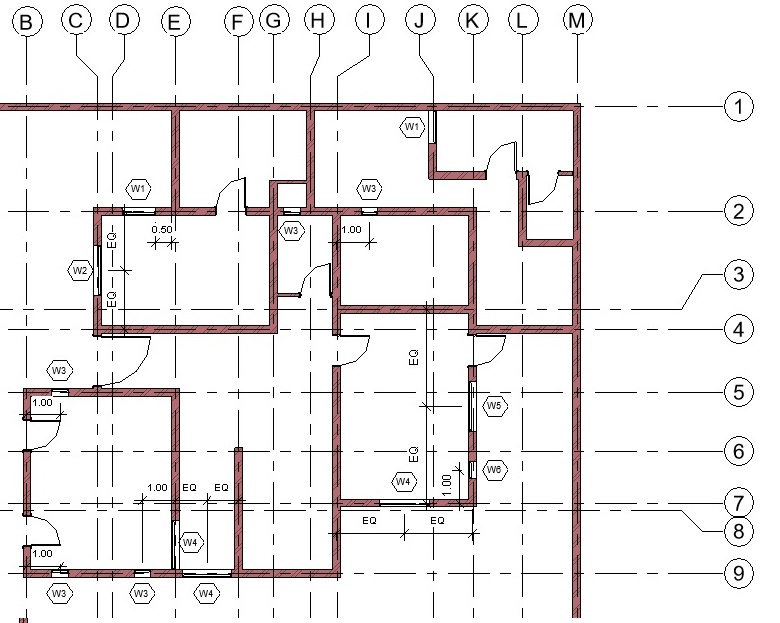
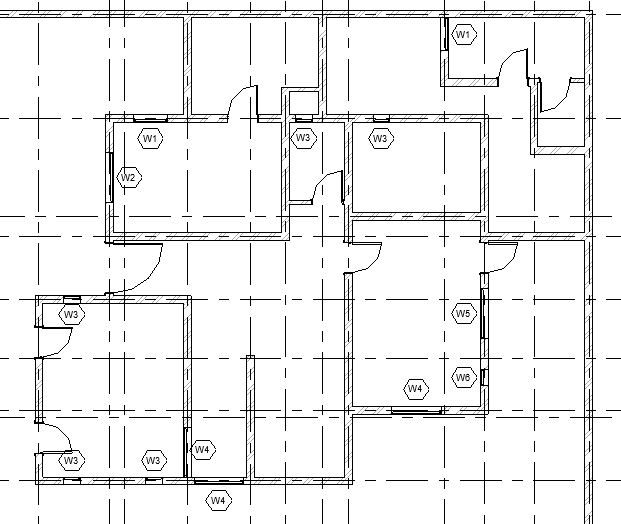
  • Add windows of following types in the Ground Floor layout as shown below:
    • W1: 1.0 x 1.0 m (Lintel Height: 2.13m)
    • W2: 1.5 x 1.0 m (Lintel Height: 2.13m)
    • W3: 0.5 x 2.0 m (Lintel Height: 2.13m)
    • W4: 1.5 x 2.0 m (Lintel Height: 2.13m)
    • W5: 1.5 x 0.5 m (Lintel Height 1.6m)
    • W6: 0.5 x 0.5 m (Lintel Height 1.6m)
M2 Win Tutorial
Fig 1. Placement of windows on Ground Floor plan of the sample tutorial project

Sample Files required for this tutorial:

If you do not have the following files, please download them from here.

  1. “TutorialWindows_Input_LearningRevitOnline.rvt”
  2. Window Family file: “Window_Single Panel.rfa”
  3. Window Tag Family file: “Window_Type Tag.rfa”

Solution:

  1. Open ‘TutorialWindows_Input_LearningRevitOnline.rvt’ in Revit. This project file already contains doors modeled in the Ground Floor levels.
  2. Navigate to the floor plan of  “00 Ground Level”.
  3. Windows are loadable families which means we will first need to load the family of the window from the library (if it is not already loaded in your project).
  4. To load a family into the project:

    • Click Insert tab -> Load from Library panel -> Load Family
    • Navigate to the folder where you have downloaded and saved the Window_Single Panel.rfa (If you do not have this file yet, please download it from here).
      • Note: By default, Revit will navigate to the library where default Autodesk families are stored. If you do not find this path when you need it, try to locate it on your PC at : %ALLUSERSPROFILE%\Autodesk\RVT 2019\Libraries (If you cannot still find the location of your family library, please see this Video Tutorial: Locating your family folder )
    • Select the file and Click Open.
    • The family has been loaded into the project.
  5. Now, before we add the windows into our model, we must create the Window types with the specific sizes as required for our project.
  6. To customize the window sizes and create new window types:

    • Click Architecture tab -> Build panel  -> Window
      • Alternatively, use “WN”as keyboard shortcut.
    • From the type selector, select any of the types available for Window_Single Panel  family.
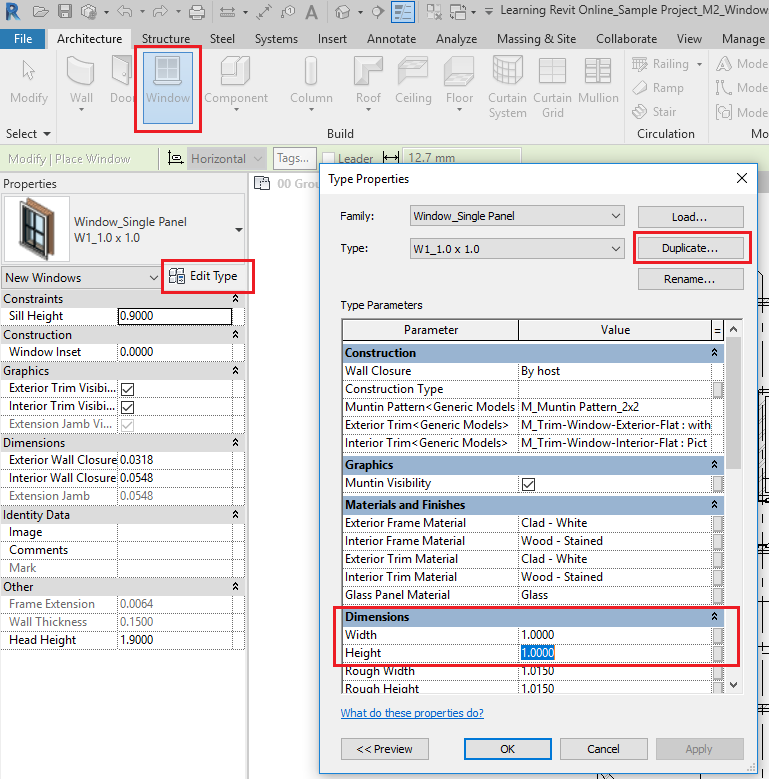
    • From the properties, select Edit Type to access Type properties palette.
    • Click Duplicate to create a new Window Type. In the Name dialog box, give a new name to the window type  “W1_1.0 x 1.0”
    • Click Ok to the Name dialog box.
    • Now, change the parameters Width to 1.0m value and Height to 1.0m value.
    • Click OK to the Type Properties dialog box.M2 Win 1
    • A new window type has been created.
    • Click Esc to end the Window tool.
  7. Repeat step 6 to create following window types:
    • W2_1.5 x 1.0 (width = 1.5m, height = 1.0m )
    • W3_0.5 x 2.0 (width = 0.5m, height = 2.0m )
    • W4_1.5 x 2.0 (width = 1.5m, height = 2.0m )
    • W5_1.5 x 0.5 (width = 1.5m, height = 0.5m )
    • W6_0.5 x 0.5 (width = 0.5m, height = 0.5m )
  8. Now, as all the window types required are prepared, we can begin to place windows in the model.
  9. To place a window in the project:

    • Click Architecture tab -> Build panel  -> Window
      • Alternatively, use “WN”as keyboard shortcut.
    • Select the Window type W1_1.0 x 1.0 from the type selector.
    • Select the window. In the Instance properties, there is parameter known as “Head Height”. This parameter value control the lintel height of the window. Change the value of head height to 2.13m (Note that when you change the value of the Head height, Sill height parameter will change automatically based on the Height of the window selected).
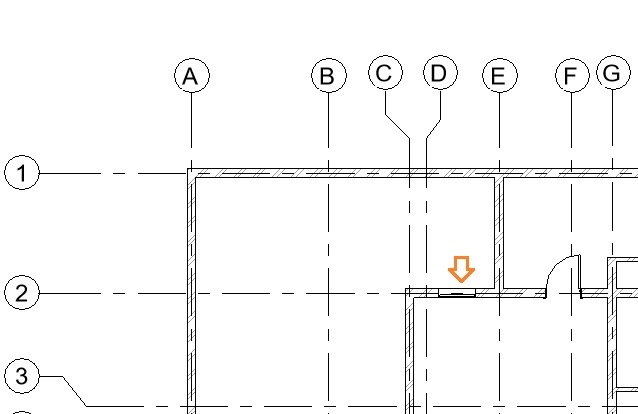
    • In the drawing area, click on the wall where you would like to place the window (between Grid D2-E2 as shown below).  Do not worry about accurate position at the moment. You can adjust it after you have placed the window.M2 Win 2.jpg
      • TIP: Press the Spacebar to flip the window while placing it in plan view.
    • Click Esc twice to end the Window tool.
    • Note that after placing the window, Revit has made an appropriate opening in the wall automatically.
  10. Select the window you have placed.
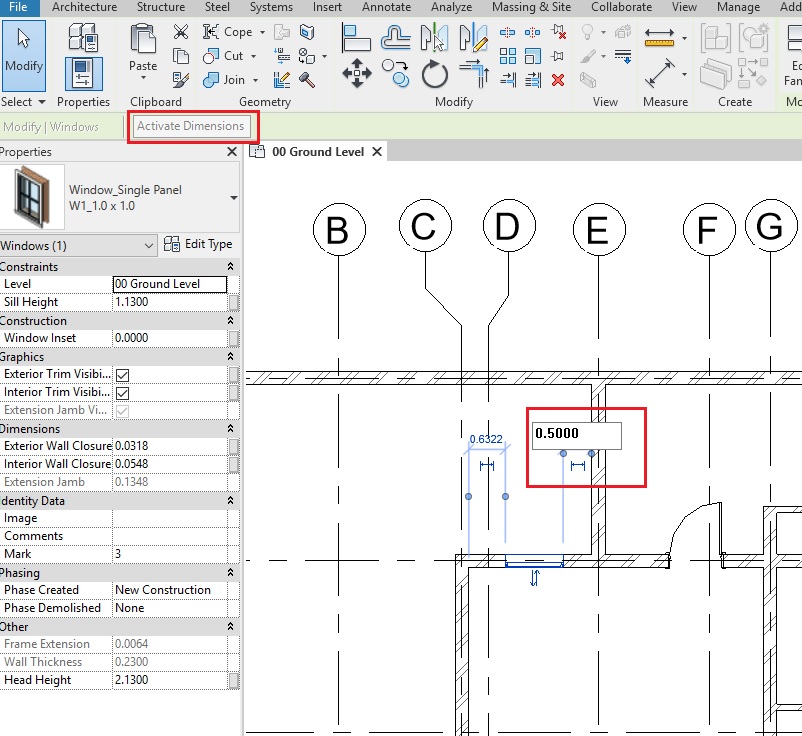
  11. Temporary dimensions will appear. If they do not appear, click on “Activate Dimensions” on the options bar.
    • TIP: You can also use a permanent dimension (Annotate->Dimension->Aligned Dimension) instead. Select the window and the permanent dimension will be editable. If it is not editable, select Activate Dimensions to make it editable.
    • M2 Win 3
  12. Change the value of the temporary dimension to 0.5m from the right edge of the window to the face of the wall on Grid E as shown above. Use the Witness line controls (blue dots on the temporary dimensions) to adjust the reference of the dimension, if needed.
    • TIP: Alternatively, you can also place a permanent dimension between the window and the wall. Select the window after placing the dimension and change the value of the dimension. (If the dimension is non-editable, click on Activate Dimensions to activate it).
  13. Now, let’s place another instance of the W1_1.0 x 1.0
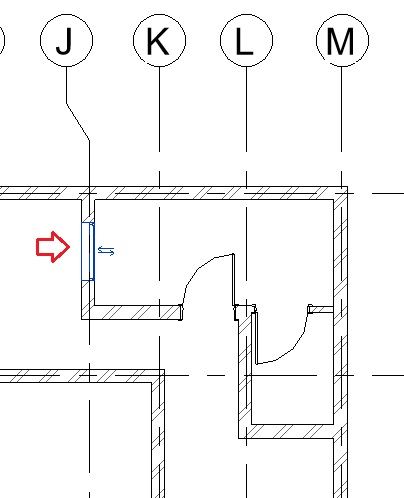
  14. Repeat step 9 to place the window at Grid J as shown below. M2 Win 4
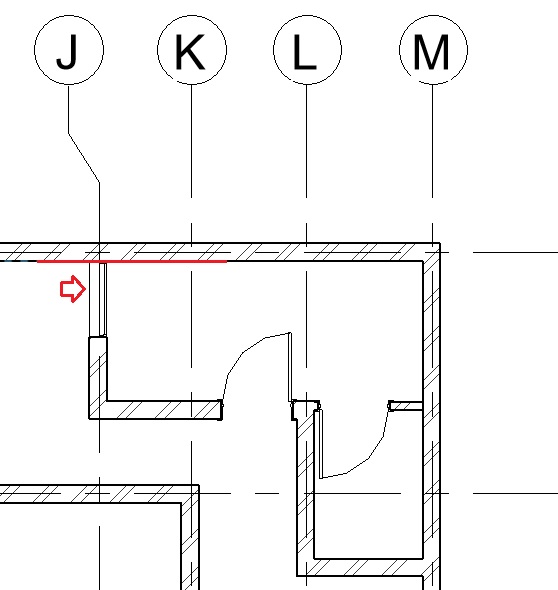
  15. Using the Align tool (Modify tab -> Modify panel -> Align), align the  edge of the left face of the window to the inner face of the wall as shown below.M2 Win 5
  16. Repeat Step 9 to add other windows as shown in Fig 1. Ensure that the head height for windows is 2.13m for window type W1, W2, W3, W4 and 1.60m for window type W5 and W6.
    • Use tools such as Align and Move to position the windows correctly. You may also use temporary, permanent dimensions and equality constraints to position the windows at a specific distance from other elements. Learn more about these tools in the chapter Modeling Doors
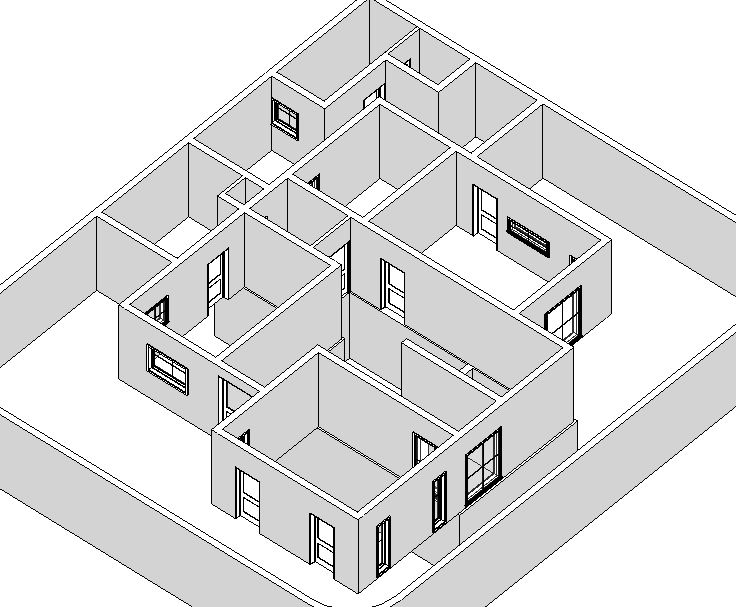
  17. Now, after modeling all windows, navigate to a 3D view to see all the windows in 3D.M2 Win 13
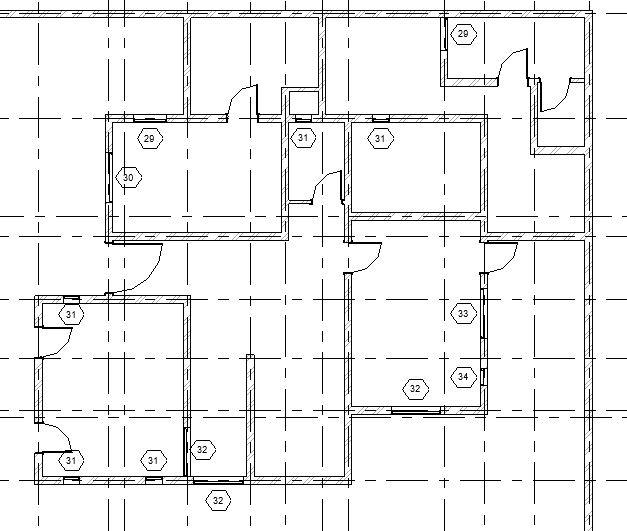
  18. After adding all the windows, let’s now add annotation of the window type numbers as window tags in the drawing as shown in Fig 1.
  19. To Add Window Tags on your drawing:

    • Window tag is a 2D annotation family that needs to be loaded into the project. Repeat step 4 to load the family “Window_Type Tag.rfa
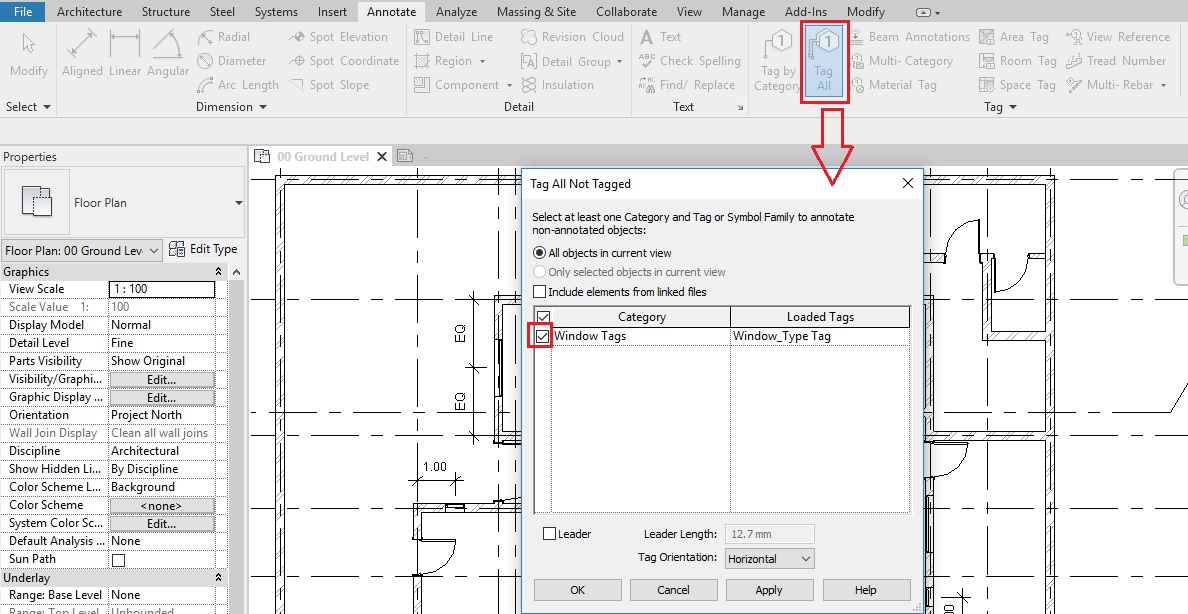
    • Go to Annotate tab -> Tag panel -> Tag All
    • The ‘Tag All Not Tagged’ dialog box will appear where the loaded Window_Type Tag family is listed. Select this tag by turning on the checkbox besides its name. M2 Win 7
    • Say OK.
    • Tags for all windows will be added in the drawing.M2 Win 8
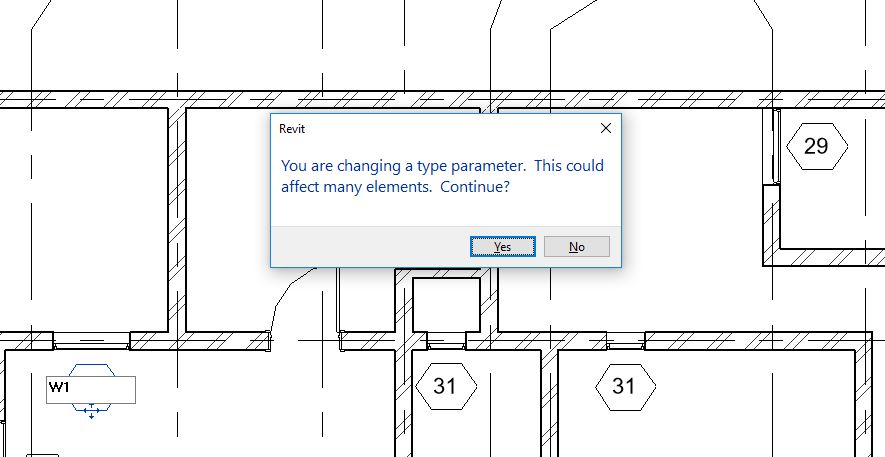
    • Each window type has been assigned a Type mark which is displayed here. However, the numbering done by Revit may not be as per your specifications. To change the Type mark value of the windows, select the tag and click on its text. Change the value as per your need.
    • When you change the value, Revit will display a warning that if you change a value in the type parameter, all instances of that type will reflect that change. Say Yes to apply this change. M2 Win 9
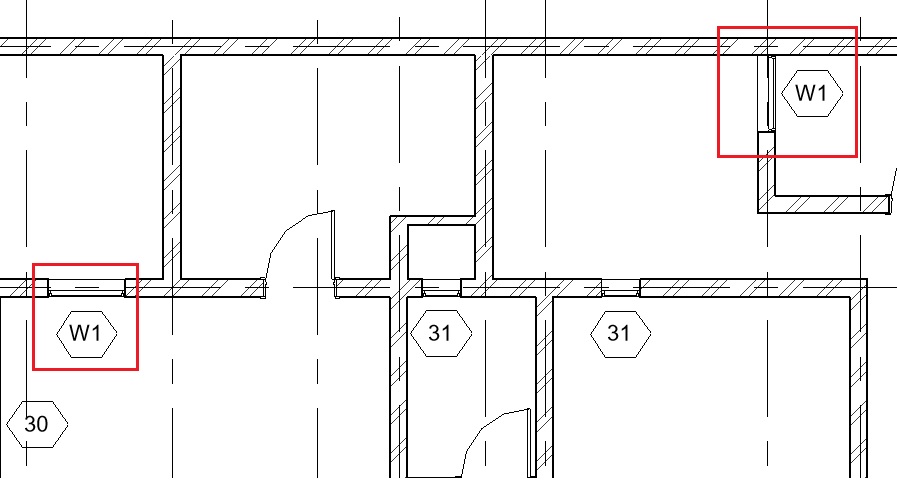
    • You will see that all the tags of the same window types now reflect the change.M2 Win 10
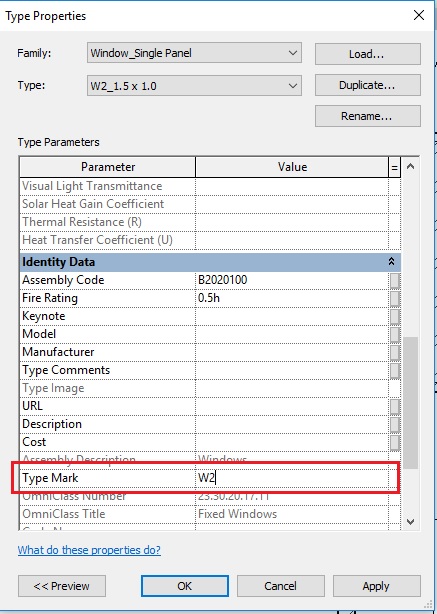
    • An alternative method to change the type mark of windows is to change the value in the Type properties of the windows.
      • Click Architecture tab -> Build panel  -> Window
      • From the Type selector, select the window type you want to apply the change. Go to Edit Type and open the Type properties palette.
      • Change the value in the Type Mark parameter.M2 Win 11
      • Click Apply.
      • Now select another Type of window in the TYPE field of the type properties palette and change its Type Mark value as required. Click Apply. Repeat this step till you have changed Type mark of all windows.
      • Click OK to the Type properties palette.
    • Click Esc to end the window tool.
    • Note that all window tags now reflect the changes you have made.M2 Win 12
  20. After completing all the steps above, Save As your project as “TutorialWindows_Output_LearningRevitOnline.rvt”.

More References:

Tutorial: Doors

About Doors

Doors can be added in plan, elevation, section or a 3D view. Doors are loadable families, which means that the family of the door (sizes, shapes, design) can be customized and placed in the library to later load them in your project.

Doors are dependent elements on their host which is usually a wall. Like in real life, a door cannot be placed if there is no wall on site. Similarly, in Revit, a door cannot be placed without a wall.

Tutorial Objective:

In this tutorial, you will learn,

Sample Problem:

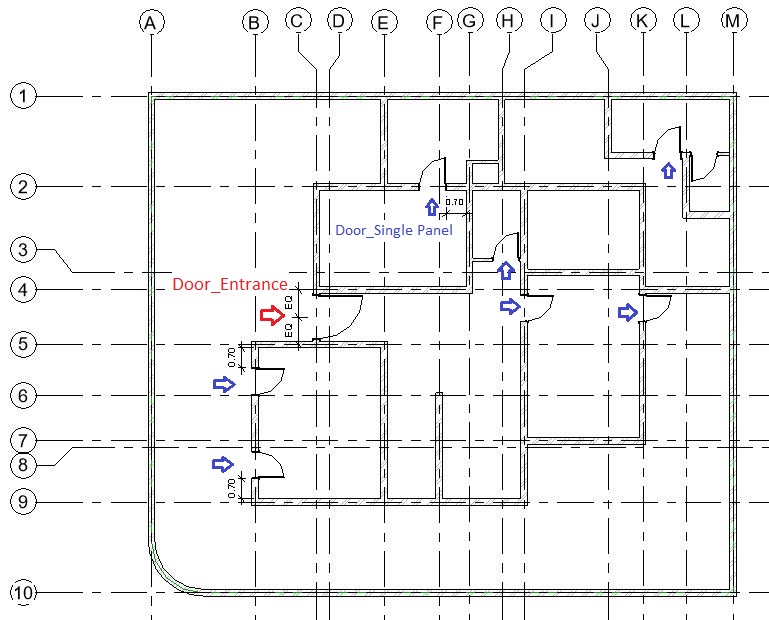
  • Add doors of following types in the Ground Floor layout as shown below:
    • Door_Single Panel: 0.9 x 2.1 m (all doors except the entrance door)
    • Door_Entrance: 1.50 x 2.63 m (at the entrance of the residence)
M2 Doors Tutorial

Sample Files required for this tutorial:

If you do not have the following files, please download them from here.

  1. “TutorialDoors_Input_LearningRevitOnline.rvt”
  2. Door Family files: “Door_Single Panel.rfa” and “Door_Entrance.rfa”

Solution:

  1. Open tutorial file ‘TutorialDoors_Input_LearningRevitOnline.rvt’ in Revit. This project file already contains walls in the Basement and Ground Floor levels.
  2. Navigate to the floor plan of  “00 Ground Level”.
  3. Doors are loadable families which means we will first need to load the family of the doors from the library (if it is not already loaded in your project).
  4. To load a family into the project:

    • Click Insert tab -> Load from Library panel -> Load Family
    • Navigate to the folder where you have downloaded and saved the Door_Single Panel.rfa (If you do not have this file yet, please download it from here).
      • Note: By default, Revit will navigate to the library where default Autodesk families are stored. If you do not find this path when you need it, try to locate it on your PC at : %ALLUSERSPROFILE%\Autodesk\RVT 2019\Libraries (If you cannot still find the location of your family library, please see this Video Tutorial: Locating your family folder )M2 Doors 1.jpg
    • Select the file and Click Open.
    • The family has been loaded into the project.
  5. Now, before we add the doors into our model, we must create the Door types with the specific sizes as required for our project.
  6. To customize the door sizes and create new door types:

    • Click Architecture tab -> Build panel  -> Door
      • Alternatively, use “DR”as keyboard shortcut.
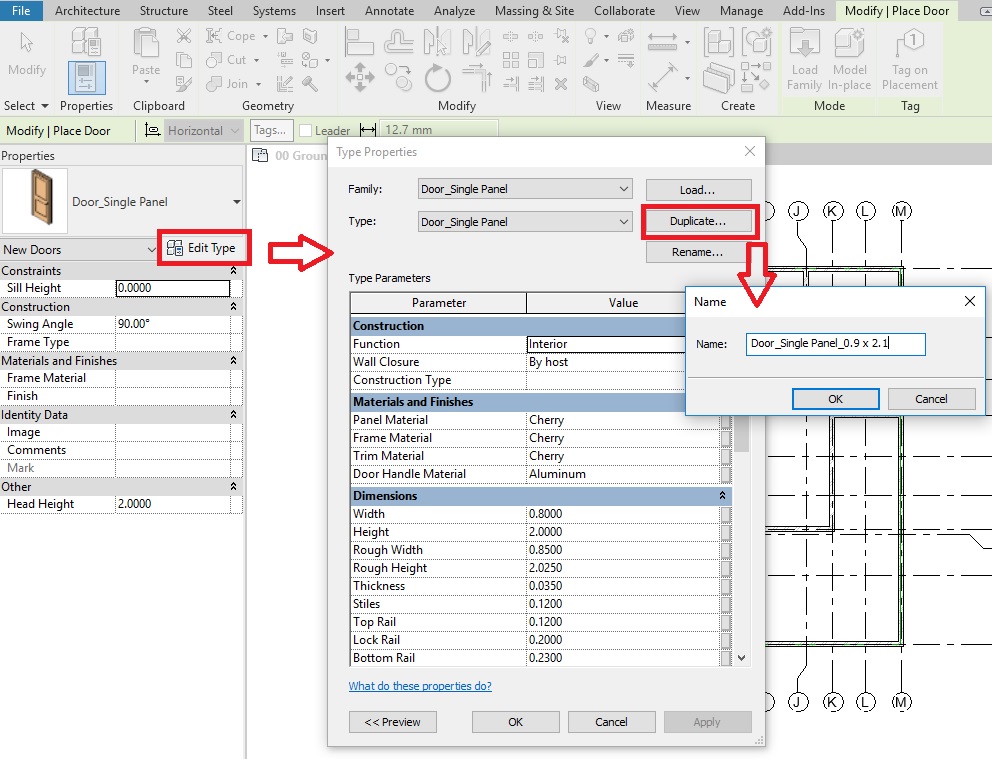
    • From the type selector, select any of the types available for Door_Single Panel family.
    • From the properties, select Edit Type to access Type properties palette.
    • Click Duplicate to create a new Door Type. In the Name dialog box, give a new name to the door type  “Door_Single Panel_0.9 x 2.1”M2 Doors 2
    • Click Ok to the Name dialog box.
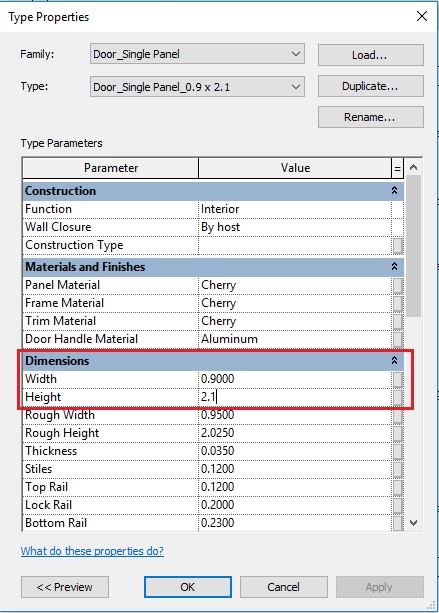
    • Now, change the parameters Width to 0.9m value and Height to 2.1m value.
    • Click OK to the Type Properties dialog box.M2 Doors 3.jpg
    • A new Door type has been created.
    • Click Esc to end the Door tool.
  7. Repeat Step 4 to load the family Door_Entrance.rfa  (If you do not have this file yet, please download it from here).
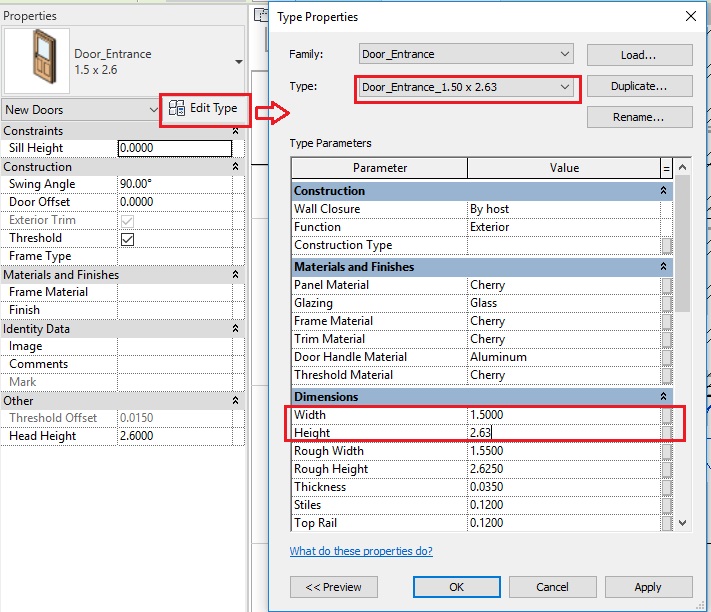
  8. Repeat Step 6 to create a new door type for the Door_Entrance.rfa family. Name the new Door type as “Door_Entrance_1.50 x 2.63” and change the size parameters to width = 1.50m and height = 2.63mM2 Doors 4
  9.  Now, as all the door types are prepared, we can begin to place doors in the model.
    • TIP: If you are not sure of which type of door types to place in your design, you can always begin by placing doors of any particular type and then later change the door type to a specific one when you have the information. This can be done by simply selecting the door in the model and changing its type from the type selector.
  10. To place a door in the project:

    • Click Architecture tab -> Build panel  -> Door
      • Alternatively, use “DR”as keyboard shortcut.
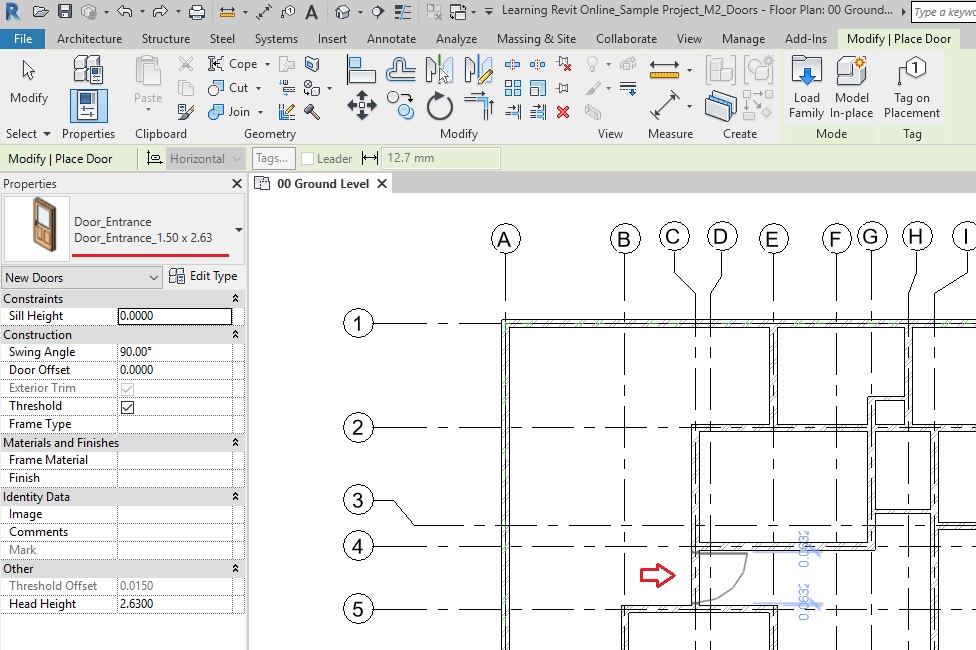
    • Select the Door type Door_Entrance_1.50 x 2.63 from the type selector.
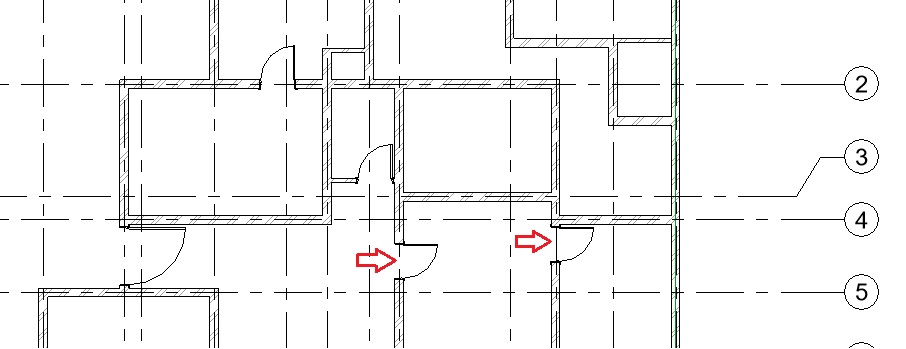
    • In the drawing area, move your cursor towards the wall where you would like to place the door (between Grid C4-C5 as shown below). Listening dimensions (in blue) will appear to support you to find the position on the wall.
      • TIP: Hover your cursor towards the direction where you would like to set the orientation of the door. The door will flip accordingly. You can also press the Spacebar to flip the door hand from left to right while placing the door in plan view.M2 Doors 5
    • Click on the wall to place the door. Do not worry about the exact positioning of the door or orientation at this moment. You can adjust this after you have placed the door.
    • Click Esc twice to end the Door tool.
    • Note that after placing the door, Revit has made an appropriate opening in the wall automatically.
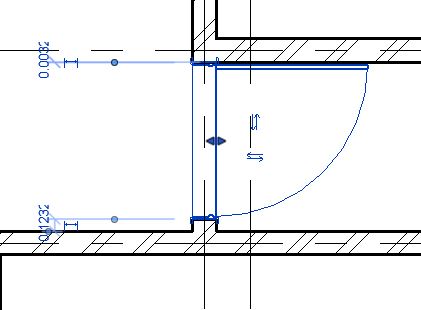
  11.  Click on the door that you have placed. Flip arrows will appear in the middle of the door. Click on the flip arrows if you wish to change the orientation of the door.
    M2 Doors 6.JPG
  12. We would like to position the door exactly in the center of the two neighboring walls as shown in Fig 1. To do this, the best way is to use permanent dimension and equality constraint.
  13. To adjust the position of an element using permanent dimension and equality constraint:

    • Go to Annotate tab -> Dimension panel -> Aligned
    • On the options bar, select Wall Center line and Pick: Individual References
    • Click the center line of the wall on Grid 4.
    • Click on the center of the Door.
    • Click the center line of the wall on Grid 5.
    • Click on empty space to place the dimension.M2 Doors 7
    • Click Esc twice to end the Dimension tool.
    • Select the dimension that you have placed.
    • There is a small “EQ” sign besides the dimension. Click on this EQ sign.
    • The dimension values will change and display text EQ instead of the values. This shows that the dimensions from the wall center line to the center of the door on both sides have been constrained to be equal. The position of the door has adjusted accordingly. If the wall moves, the door will also move with it to maintain the equal distance to its center. M2 Doors 8.JPG
    • Click Esc to deselect the dimension.
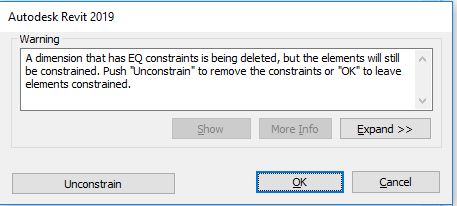
    • If you delete the dimension, a warning sign will be displayed explaining that equality constraint between the elements will be maintained even when the dimension is deleted. Say OK if you wish to do so. If you do not want the equality constraint to be maintained, then select Unconstrain. M2 Doors 9.JPG
  14. Now, repeat step 10 to place the door type “Door_Single Panel_0.9 x 2.1” near Grid F-2 as shown below.M2 Doors10.jpg
  15. Use temporary dimensions to adjust the position of the door:

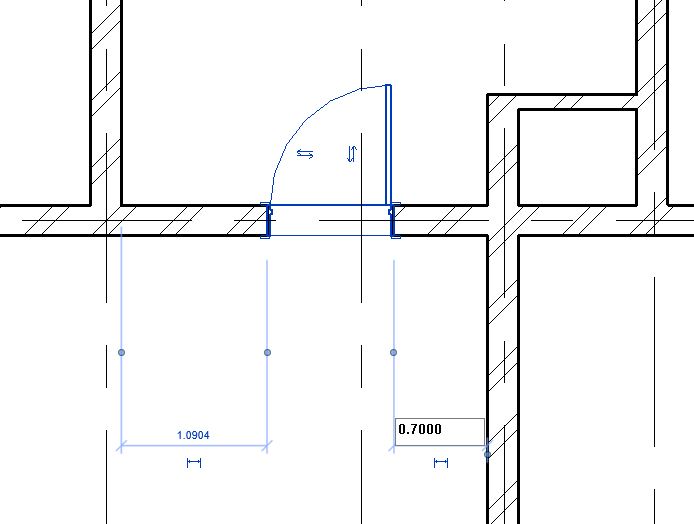
    • Select the door after placing it. Temporary dimensions will appear. Click on the temporary dimension’s value and change it to 0.7m  as shown below to place the door 0.7m away from the wall on Grid G.
      • Drag a control for the witness line (the blue dots shown in the image) to a different reference, if needed (for ex: from center of the wall to face of the wall)
      • Alternatively,  right-click the witness line control, and click Move Witness Line. You can then move the witness line to a new reference.
        M2 Doors11
  16. Now, repeat step 10 to place the door type “Door_Single Panel_0.9 x 2.1” as shown below.M2 Doors12
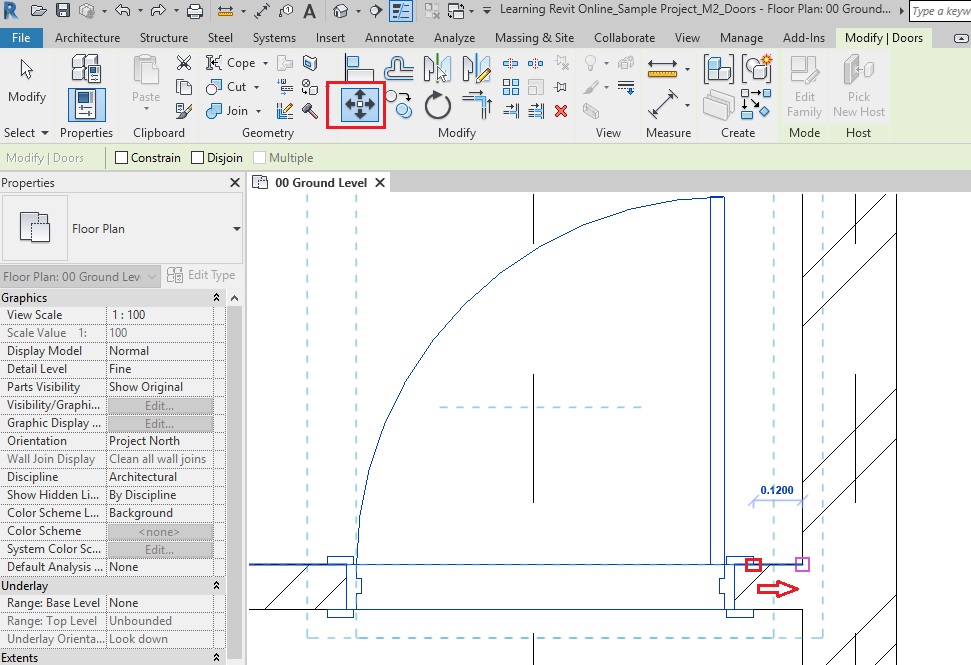
  17. Now, for this door, we would like to position the right door frame attached to the right wall. To do this, the best way would be to use Move tool.
  18. Use Move Tool to adjust the position of the door:

    • Go to Modify tab -> Modify panel -> Move
      • Alternatively, use “MV” as a keyboard shortcut.
    • Click on the edge of the right door frame as the base point.
    • Click on the edge of the wall where the door frame needs to be moved.

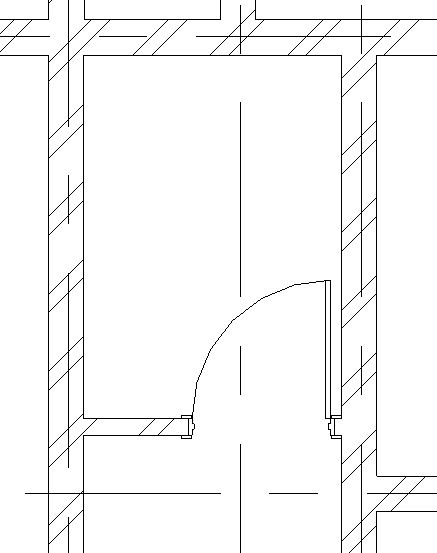
After the door has been moved, click Esc to end the Move tool.

  • Now, repeat step 10 to place the door type “Door_Single Panel_0.9 x 2.1” as shown below. M2 Doors15
  • Adjust the position of the door on Grid K using the Move tool as shown in step 18 to align the door frame with the wall.
  • Now, the door on Grid I is exactly at the same parallel position as Grid K. To align both of these doors, use Align tool.
  • Use Align tool to adjust the position of the door:

    • Go to Modify tab -> Modify panel -> Align
      • Alternatively, use “AL” as a keyboard shortcut.
    • Click on the center line of the door on Grid K to set it as a reference.
    • Now, click on the center line of the door on Grid I to align with the reference.M2 Doors16
    • Both doors are now aligned with each other.
    • Click Esc to end the Align tool.
  • Using the methods shown above in step 10, 15 and 18, place doors with door type “Door_Single Panel_0.9 x 2.1” as shown below:M2 Doors17
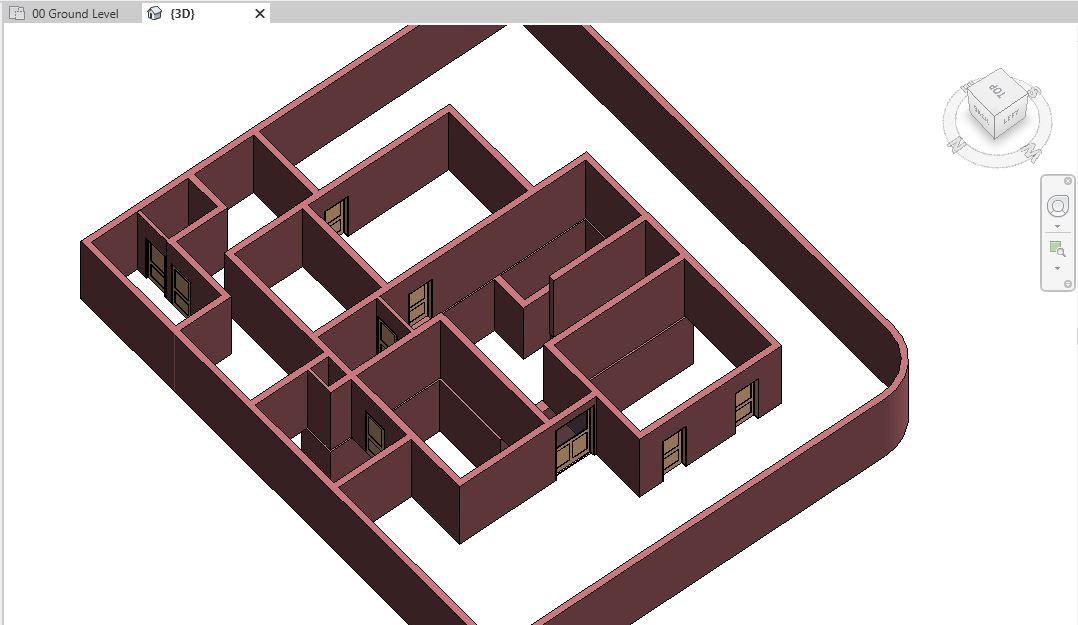
  • Navigate to a 3D view to see all the doors in 3D.M2 Doors 18
  • After completing all the steps above, Save As your project as “TutorialDoors_Output_LearningRevitOnline.rvt”.

  • More References:

    • After placing the door, if you would like to move it to another wall, use ‘pick new host’ tool to move the door.
    • If you would like to create your own custom family for the door, it is advised that you first familiarize yourself with basic family editing tools covered in later sections of this course. However, if you are already familiar with them, you can create a custom door as guided by this Video Tutorial: How to create a door family presented by Brett Grinkmeyer.