Tutorial: Windows

About Windows

Windows can be added in plan, elevation, section or a 3D view. Windows are loadable families, which means that the family of the Window (sizes, shapes, design) can be customized and placed in the library to load them in your project.

Windows are dependent elements on their host which is usually a wall. Like in real life, a window cannot be placed if there is no wall on site. Similarly, in Revit, a Window cannot be placed without a wall.

Tutorial Objective:

Modeling windows is similar to modeling doors. Thus, it is recommended that you familiarize yourself with tools and techniques shown in the chapter Modeling Doors before starting this tutorial.

In this tutorial, you will learn,

Sample Problem:

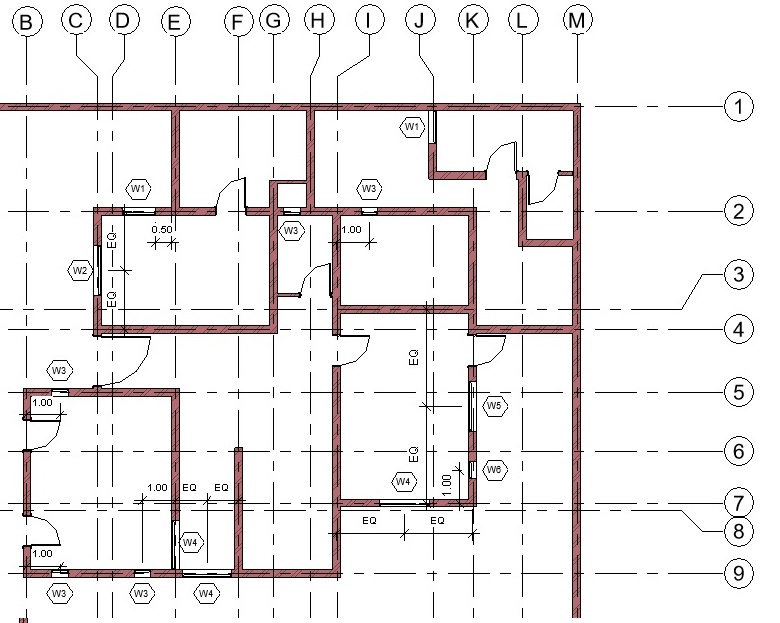
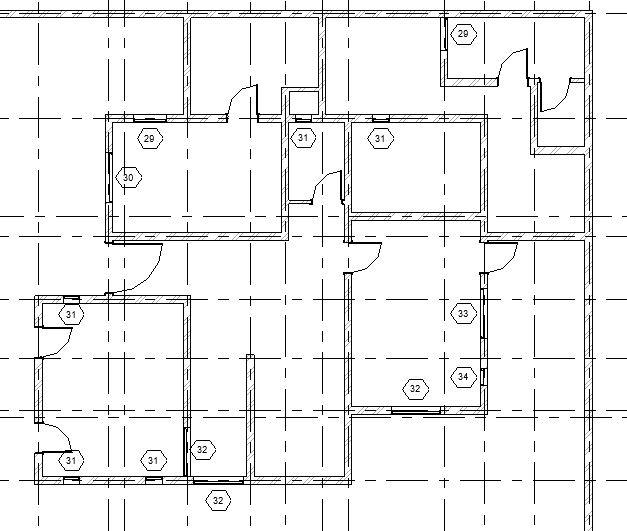
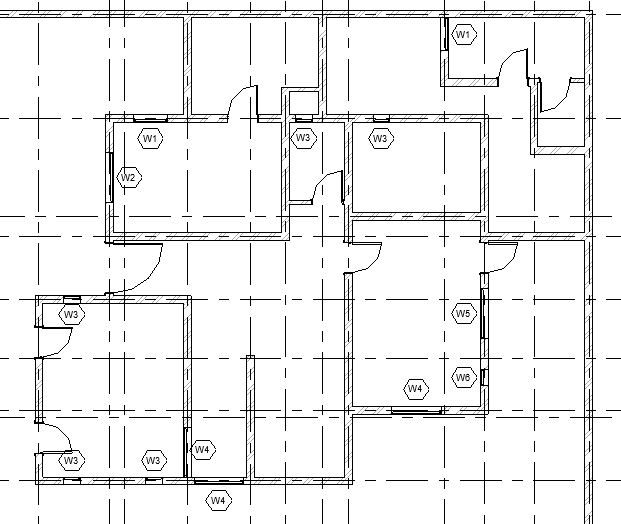
  • Add windows of following types in the Ground Floor layout as shown below:
    • W1: 1.0 x 1.0 m (Lintel Height: 2.13m)
    • W2: 1.5 x 1.0 m (Lintel Height: 2.13m)
    • W3: 0.5 x 2.0 m (Lintel Height: 2.13m)
    • W4: 1.5 x 2.0 m (Lintel Height: 2.13m)
    • W5: 1.5 x 0.5 m (Lintel Height 1.6m)
    • W6: 0.5 x 0.5 m (Lintel Height 1.6m)
M2 Win Tutorial
Fig 1. Placement of windows on Ground Floor plan of the sample tutorial project

Sample Files required for this tutorial:

If you do not have the following files, please download them from here.

  1. “TutorialWindows_Input_LearningRevitOnline.rvt”
  2. Window Family file: “Window_Single Panel.rfa”
  3. Window Tag Family file: “Window_Type Tag.rfa”

Solution:

  1. Open ‘TutorialWindows_Input_LearningRevitOnline.rvt’ in Revit. This project file already contains doors modeled in the Ground Floor levels.
  2. Navigate to the floor plan of  “00 Ground Level”.
  3. Windows are loadable families which means we will first need to load the family of the window from the library (if it is not already loaded in your project).
  4. To load a family into the project:

    • Click Insert tab -> Load from Library panel -> Load Family
    • Navigate to the folder where you have downloaded and saved the Window_Single Panel.rfa (If you do not have this file yet, please download it from here).
      • Note: By default, Revit will navigate to the library where default Autodesk families are stored. If you do not find this path when you need it, try to locate it on your PC at : %ALLUSERSPROFILE%\Autodesk\RVT 2019\Libraries (If you cannot still find the location of your family library, please see this Video Tutorial: Locating your family folder )
    • Select the file and Click Open.
    • The family has been loaded into the project.
  5. Now, before we add the windows into our model, we must create the Window types with the specific sizes as required for our project.
  6. To customize the window sizes and create new window types:

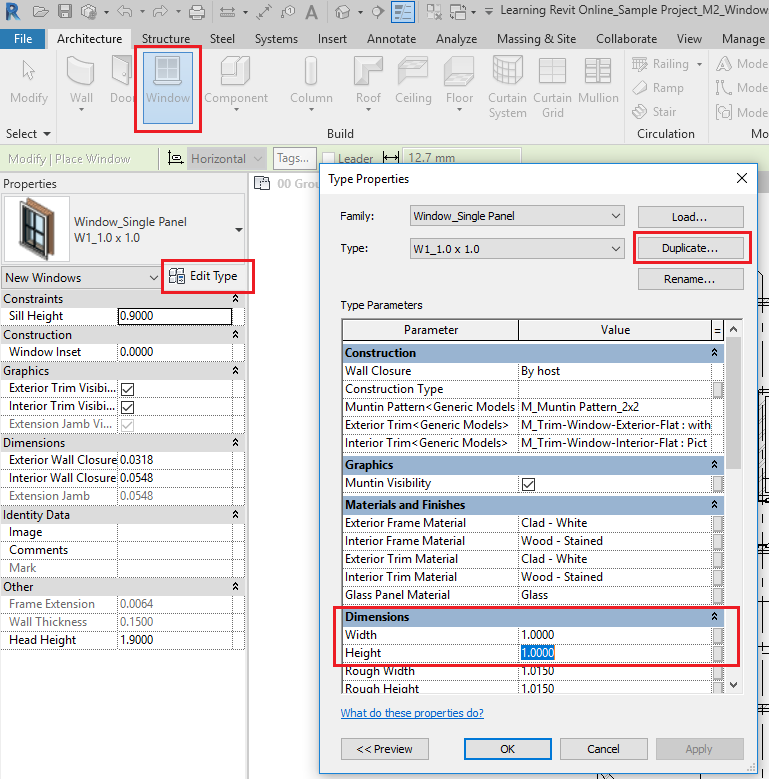
    • Click Architecture tab -> Build panel  -> Window
      • Alternatively, use “WN”as keyboard shortcut.
    • From the type selector, select any of the types available for Window_Single Panel  family.
    • From the properties, select Edit Type to access Type properties palette.
    • Click Duplicate to create a new Window Type. In the Name dialog box, give a new name to the window type  “W1_1.0 x 1.0”
    • Click Ok to the Name dialog box.
    • Now, change the parameters Width to 1.0m value and Height to 1.0m value.
    • Click OK to the Type Properties dialog box.M2 Win 1
    • A new window type has been created.
    • Click Esc to end the Window tool.
  7. Repeat step 6 to create following window types:
    • W2_1.5 x 1.0 (width = 1.5m, height = 1.0m )
    • W3_0.5 x 2.0 (width = 0.5m, height = 2.0m )
    • W4_1.5 x 2.0 (width = 1.5m, height = 2.0m )
    • W5_1.5 x 0.5 (width = 1.5m, height = 0.5m )
    • W6_0.5 x 0.5 (width = 0.5m, height = 0.5m )
  8. Now, as all the window types required are prepared, we can begin to place windows in the model.
  9. To place a window in the project:

    • Click Architecture tab -> Build panel  -> Window
      • Alternatively, use “WN”as keyboard shortcut.
    • Select the Window type W1_1.0 x 1.0 from the type selector.
    • Select the window. In the Instance properties, there is parameter known as “Head Height”. This parameter value control the lintel height of the window. Change the value of head height to 2.13m (Note that when you change the value of the Head height, Sill height parameter will change automatically based on the Height of the window selected).
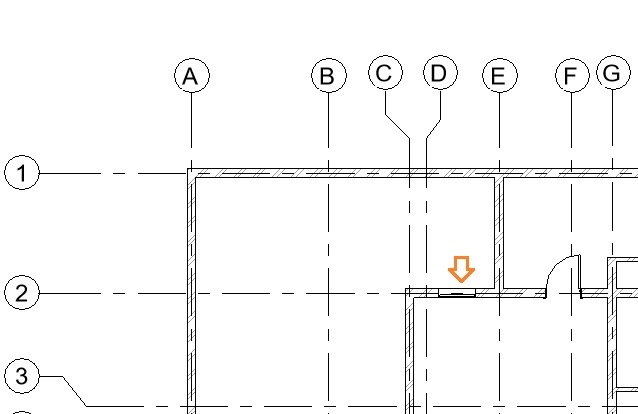
    • In the drawing area, click on the wall where you would like to place the window (between Grid D2-E2 as shown below).  Do not worry about accurate position at the moment. You can adjust it after you have placed the window.M2 Win 2.jpg
      • TIP: Press the Spacebar to flip the window while placing it in plan view.
    • Click Esc twice to end the Window tool.
    • Note that after placing the window, Revit has made an appropriate opening in the wall automatically.
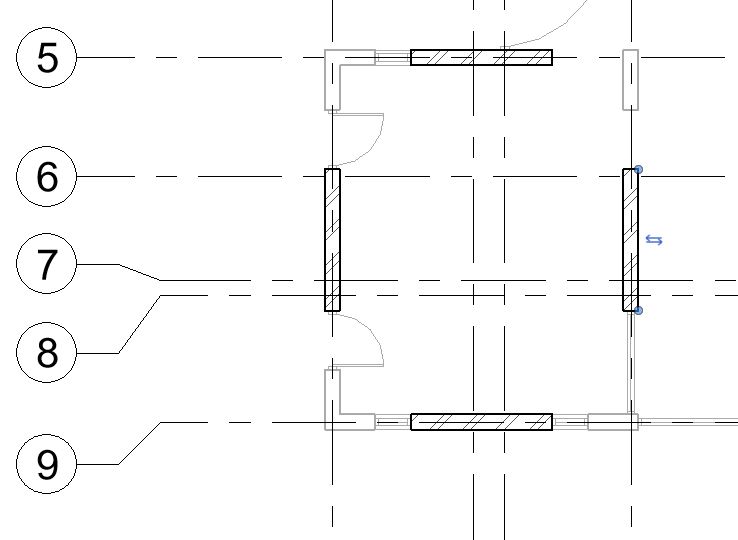
  10. Select the window you have placed.
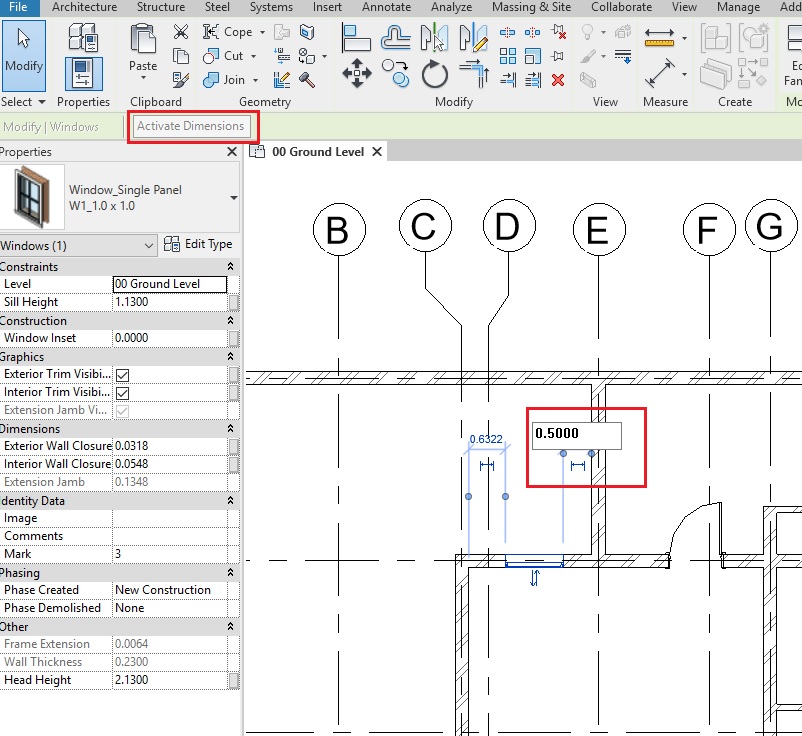
  11. Temporary dimensions will appear. If they do not appear, click on “Activate Dimensions” on the options bar.
    • TIP: You can also use a permanent dimension (Annotate->Dimension->Aligned Dimension) instead. Select the window and the permanent dimension will be editable. If it is not editable, select Activate Dimensions to make it editable.
    • M2 Win 3
  12. Change the value of the temporary dimension to 0.5m from the right edge of the window to the face of the wall on Grid E as shown above. Use the Witness line controls (blue dots on the temporary dimensions) to adjust the reference of the dimension, if needed.
    • TIP: Alternatively, you can also place a permanent dimension between the window and the wall. Select the window after placing the dimension and change the value of the dimension. (If the dimension is non-editable, click on Activate Dimensions to activate it).
  13. Now, let’s place another instance of the W1_1.0 x 1.0
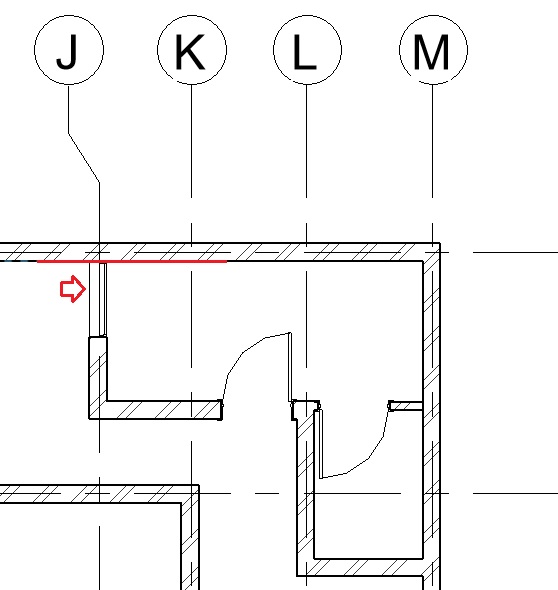
  14. Repeat step 9 to place the window at Grid J as shown below. M2 Win 4
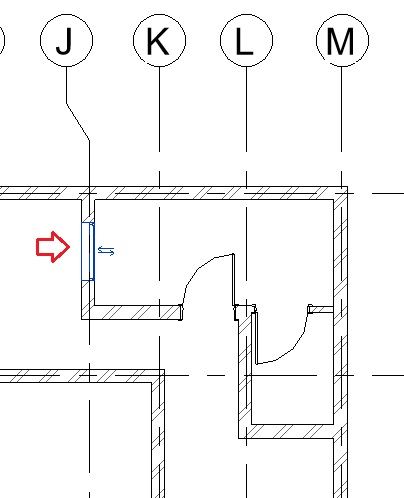
  15. Using the Align tool (Modify tab -> Modify panel -> Align), align the  edge of the left face of the window to the inner face of the wall as shown below.M2 Win 5
  16. Repeat Step 9 to add other windows as shown in Fig 1. Ensure that the head height for windows is 2.13m for window type W1, W2, W3, W4 and 1.60m for window type W5 and W6.
    • Use tools such as Align and Move to position the windows correctly. You may also use temporary, permanent dimensions and equality constraints to position the windows at a specific distance from other elements. Learn more about these tools in the chapter Modeling Doors
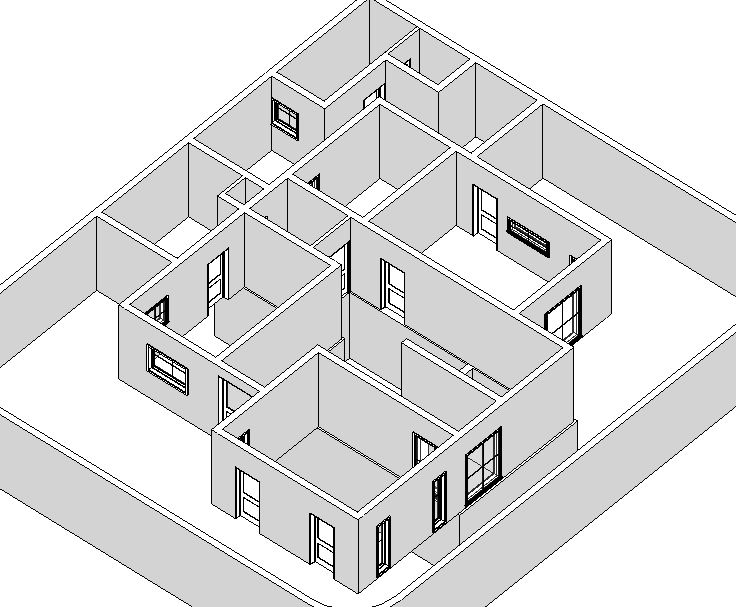
  17. Now, after modeling all windows, navigate to a 3D view to see all the windows in 3D.M2 Win 13
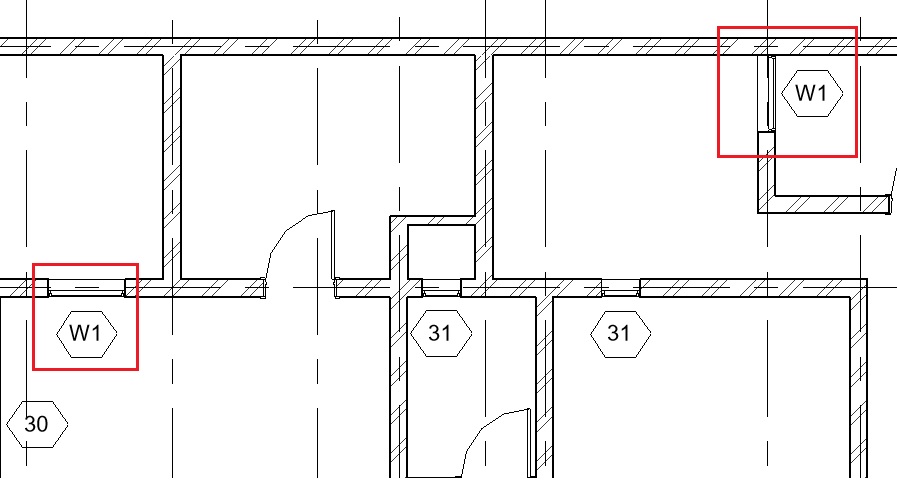
  18. After adding all the windows, let’s now add annotation of the window type numbers as window tags in the drawing as shown in Fig 1.
  19. To Add Window Tags on your drawing:

    • Window tag is a 2D annotation family that needs to be loaded into the project. Repeat step 4 to load the family “Window_Type Tag.rfa
    • Go to Annotate tab -> Tag panel -> Tag All
    • The ‘Tag All Not Tagged’ dialog box will appear where the loaded Window_Type Tag family is listed. Select this tag by turning on the checkbox besides its name. M2 Win 7
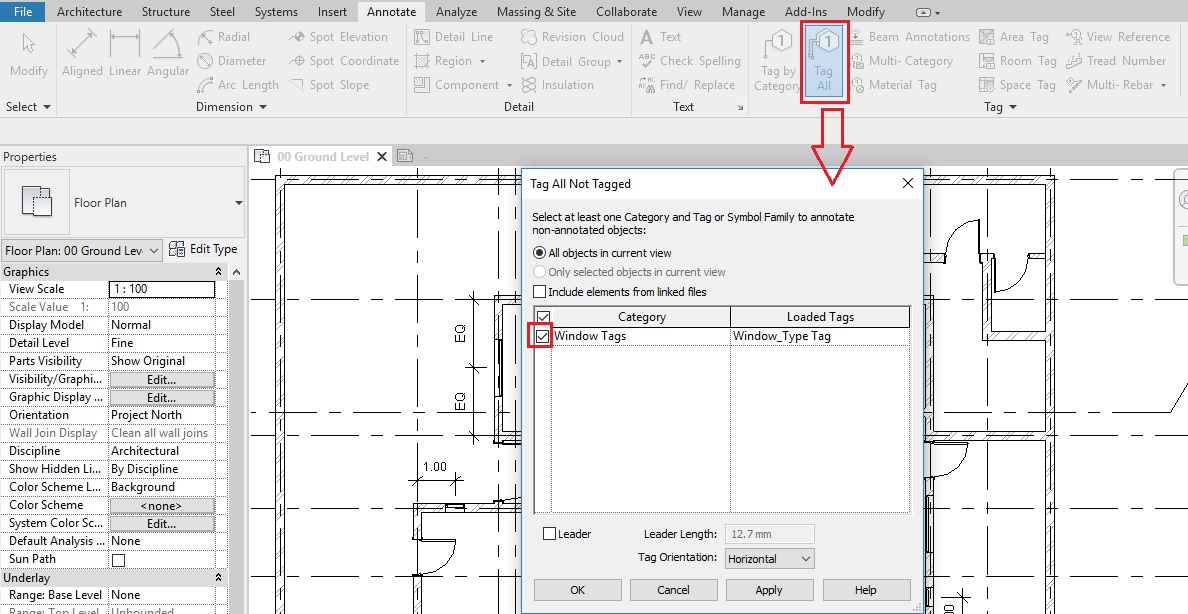
    • Say OK.
    • Tags for all windows will be added in the drawing.M2 Win 8
    • Each window type has been assigned a Type mark which is displayed here. However, the numbering done by Revit may not be as per your specifications. To change the Type mark value of the windows, select the tag and click on its text. Change the value as per your need.
    • When you change the value, Revit will display a warning that if you change a value in the type parameter, all instances of that type will reflect that change. Say Yes to apply this change. M2 Win 9
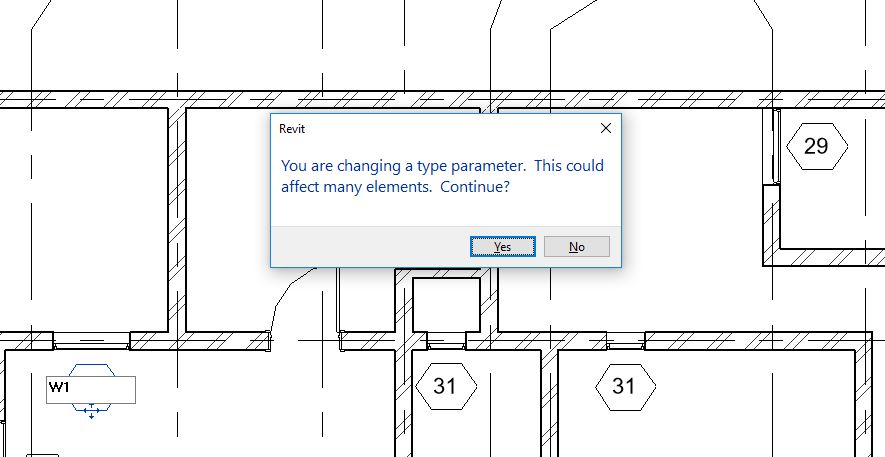
    • You will see that all the tags of the same window types now reflect the change.M2 Win 10
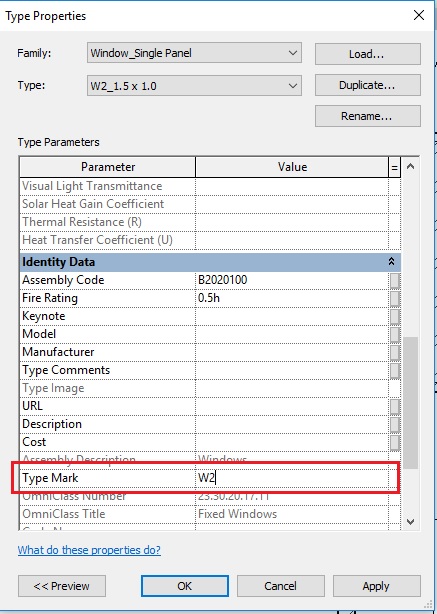
    • An alternative method to change the type mark of windows is to change the value in the Type properties of the windows.
      • Click Architecture tab -> Build panel  -> Window
      • From the Type selector, select the window type you want to apply the change. Go to Edit Type and open the Type properties palette.
      • Change the value in the Type Mark parameter.M2 Win 11
      • Click Apply.
      • Now select another Type of window in the TYPE field of the type properties palette and change its Type Mark value as required. Click Apply. Repeat this step till you have changed Type mark of all windows.
      • Click OK to the Type properties palette.
    • Click Esc to end the window tool.
    • Note that all window tags now reflect the changes you have made.M2 Win 12
  20. After completing all the steps above, Save As your project as “TutorialWindows_Output_LearningRevitOnline.rvt”.

More References:

Tutorial: Doors

About Doors

Doors can be added in plan, elevation, section or a 3D view. Doors are loadable families, which means that the family of the door (sizes, shapes, design) can be customized and placed in the library to later load them in your project.

Doors are dependent elements on their host which is usually a wall. Like in real life, a door cannot be placed if there is no wall on site. Similarly, in Revit, a door cannot be placed without a wall.

Tutorial Objective:

In this tutorial, you will learn,

Sample Problem:

  • Add doors of following types in the Ground Floor layout as shown below:
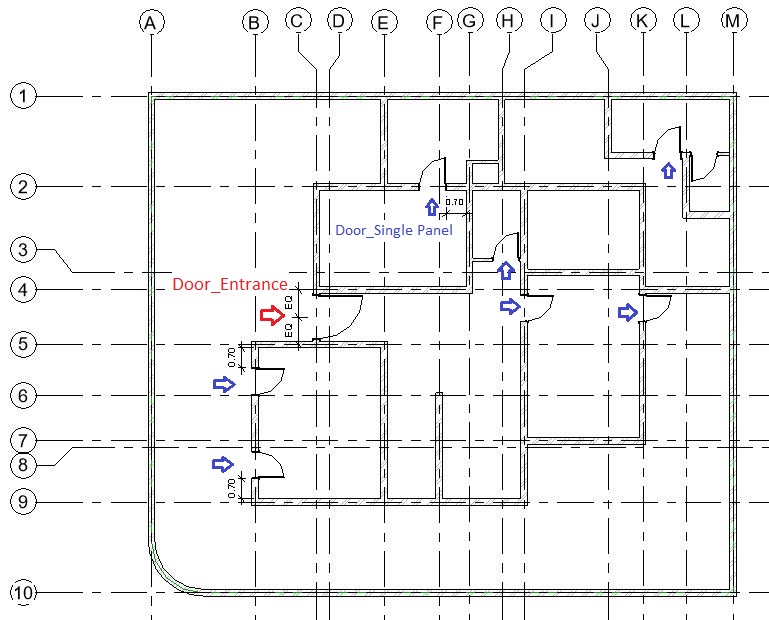
    • Door_Single Panel: 0.9 x 2.1 m (all doors except the entrance door)
    • Door_Entrance: 1.50 x 2.63 m (at the entrance of the residence)
M2 Doors Tutorial

Sample Files required for this tutorial:

If you do not have the following files, please download them from here.

  1. “TutorialDoors_Input_LearningRevitOnline.rvt”
  2. Door Family files: “Door_Single Panel.rfa” and “Door_Entrance.rfa”

Solution:

  1. Open tutorial file ‘TutorialDoors_Input_LearningRevitOnline.rvt’ in Revit. This project file already contains walls in the Basement and Ground Floor levels.
  2. Navigate to the floor plan of  “00 Ground Level”.
  3. Doors are loadable families which means we will first need to load the family of the doors from the library (if it is not already loaded in your project).
  4. To load a family into the project:

    • Click Insert tab -> Load from Library panel -> Load Family
    • Navigate to the folder where you have downloaded and saved the Door_Single Panel.rfa (If you do not have this file yet, please download it from here).
      • Note: By default, Revit will navigate to the library where default Autodesk families are stored. If you do not find this path when you need it, try to locate it on your PC at : %ALLUSERSPROFILE%\Autodesk\RVT 2019\Libraries (If you cannot still find the location of your family library, please see this Video Tutorial: Locating your family folder )M2 Doors 1.jpg
    • Select the file and Click Open.
    • The family has been loaded into the project.
  5. Now, before we add the doors into our model, we must create the Door types with the specific sizes as required for our project.
  6. To customize the door sizes and create new door types:

    • Click Architecture tab -> Build panel  -> Door
      • Alternatively, use “DR”as keyboard shortcut.
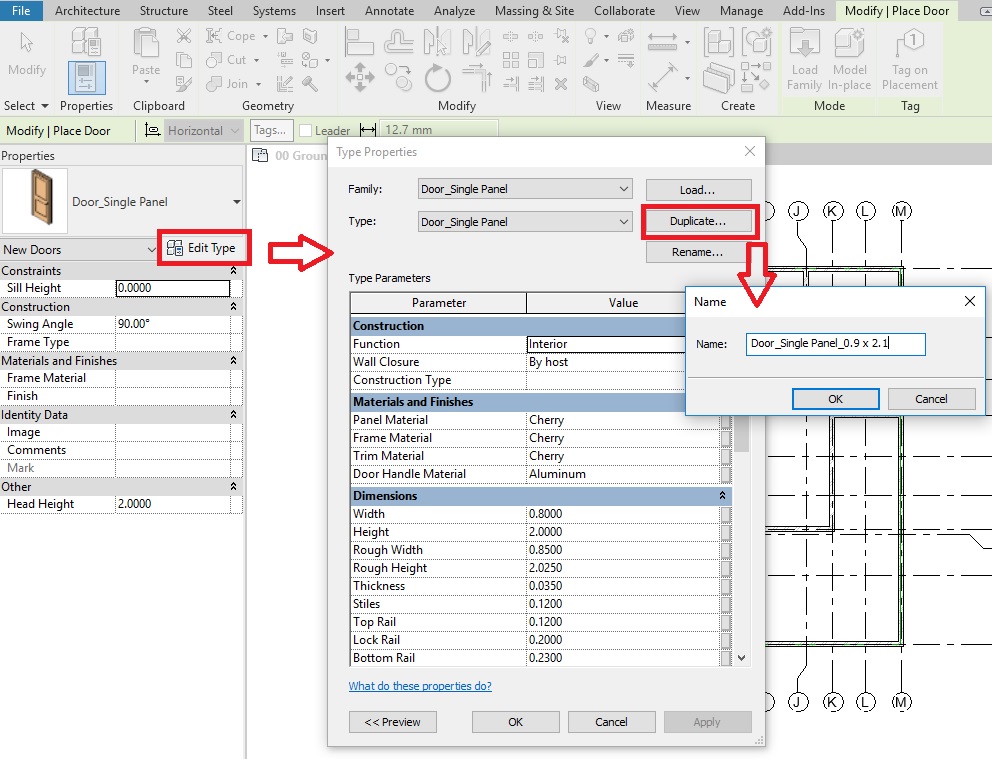
    • From the type selector, select any of the types available for Door_Single Panel family.
    • From the properties, select Edit Type to access Type properties palette.
    • Click Duplicate to create a new Door Type. In the Name dialog box, give a new name to the door type  “Door_Single Panel_0.9 x 2.1”M2 Doors 2
    • Click Ok to the Name dialog box.
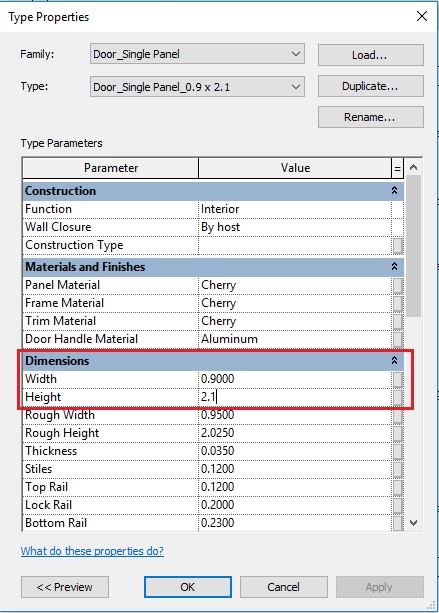
    • Now, change the parameters Width to 0.9m value and Height to 2.1m value.
    • Click OK to the Type Properties dialog box.M2 Doors 3.jpg
    • A new Door type has been created.
    • Click Esc to end the Door tool.
  7. Repeat Step 4 to load the family Door_Entrance.rfa  (If you do not have this file yet, please download it from here).
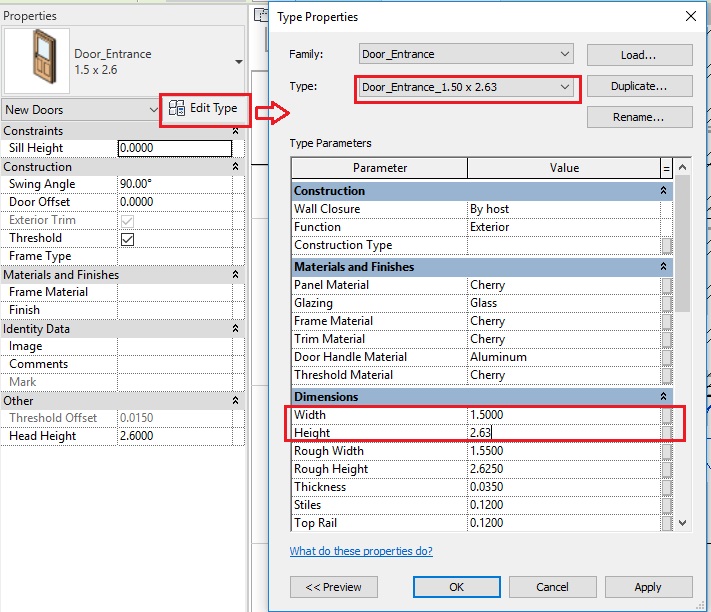
  8. Repeat Step 6 to create a new door type for the Door_Entrance.rfa family. Name the new Door type as “Door_Entrance_1.50 x 2.63” and change the size parameters to width = 1.50m and height = 2.63mM2 Doors 4
  9.  Now, as all the door types are prepared, we can begin to place doors in the model.
    • TIP: If you are not sure of which type of door types to place in your design, you can always begin by placing doors of any particular type and then later change the door type to a specific one when you have the information. This can be done by simply selecting the door in the model and changing its type from the type selector.
  10. To place a door in the project:

    • Click Architecture tab -> Build panel  -> Door
      • Alternatively, use “DR”as keyboard shortcut.
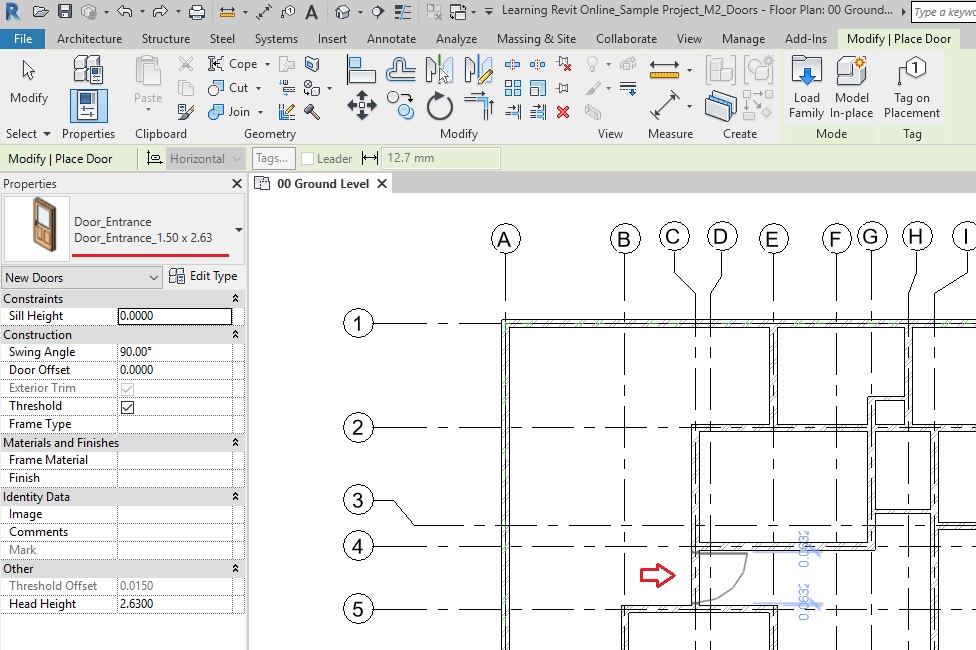
    • Select the Door type Door_Entrance_1.50 x 2.63 from the type selector.
    • In the drawing area, move your cursor towards the wall where you would like to place the door (between Grid C4-C5 as shown below). Listening dimensions (in blue) will appear to support you to find the position on the wall.
      • TIP: Hover your cursor towards the direction where you would like to set the orientation of the door. The door will flip accordingly. You can also press the Spacebar to flip the door hand from left to right while placing the door in plan view.M2 Doors 5
    • Click on the wall to place the door. Do not worry about the exact positioning of the door or orientation at this moment. You can adjust this after you have placed the door.
    • Click Esc twice to end the Door tool.
    • Note that after placing the door, Revit has made an appropriate opening in the wall automatically.
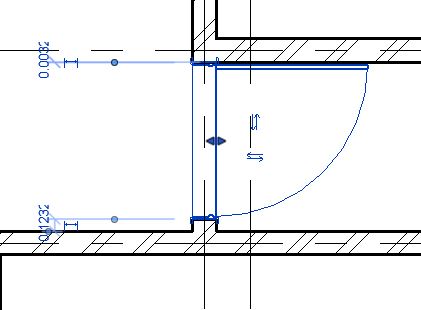
  11.  Click on the door that you have placed. Flip arrows will appear in the middle of the door. Click on the flip arrows if you wish to change the orientation of the door.
    M2 Doors 6.JPG
  12. We would like to position the door exactly in the center of the two neighboring walls as shown in Fig 1. To do this, the best way is to use permanent dimension and equality constraint.
  13. To adjust the position of an element using permanent dimension and equality constraint:

    • Go to Annotate tab -> Dimension panel -> Aligned
    • On the options bar, select Wall Center line and Pick: Individual References
    • Click the center line of the wall on Grid 4.
    • Click on the center of the Door.
    • Click the center line of the wall on Grid 5.
    • Click on empty space to place the dimension.M2 Doors 7
    • Click Esc twice to end the Dimension tool.
    • Select the dimension that you have placed.
    • There is a small “EQ” sign besides the dimension. Click on this EQ sign.
    • The dimension values will change and display text EQ instead of the values. This shows that the dimensions from the wall center line to the center of the door on both sides have been constrained to be equal. The position of the door has adjusted accordingly. If the wall moves, the door will also move with it to maintain the equal distance to its center. M2 Doors 8.JPG
    • Click Esc to deselect the dimension.
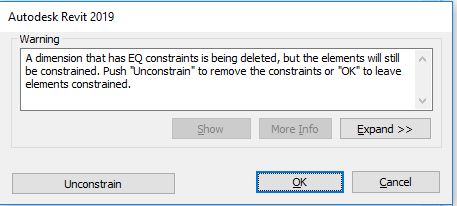
    • If you delete the dimension, a warning sign will be displayed explaining that equality constraint between the elements will be maintained even when the dimension is deleted. Say OK if you wish to do so. If you do not want the equality constraint to be maintained, then select Unconstrain. M2 Doors 9.JPG
  14. Now, repeat step 10 to place the door type “Door_Single Panel_0.9 x 2.1” near Grid F-2 as shown below.M2 Doors10.jpg
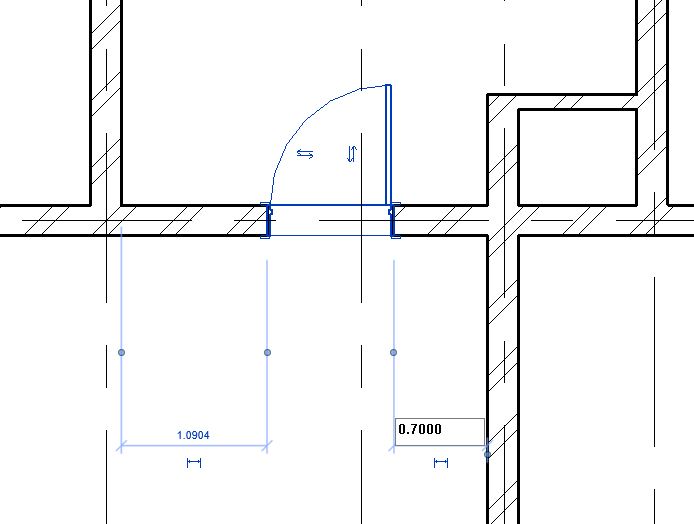
  15. Use temporary dimensions to adjust the position of the door:

    • Select the door after placing it. Temporary dimensions will appear. Click on the temporary dimension’s value and change it to 0.7m  as shown below to place the door 0.7m away from the wall on Grid G.
      • Drag a control for the witness line (the blue dots shown in the image) to a different reference, if needed (for ex: from center of the wall to face of the wall)
      • Alternatively,  right-click the witness line control, and click Move Witness Line. You can then move the witness line to a new reference.
        M2 Doors11
  16. Now, repeat step 10 to place the door type “Door_Single Panel_0.9 x 2.1” as shown below.M2 Doors12
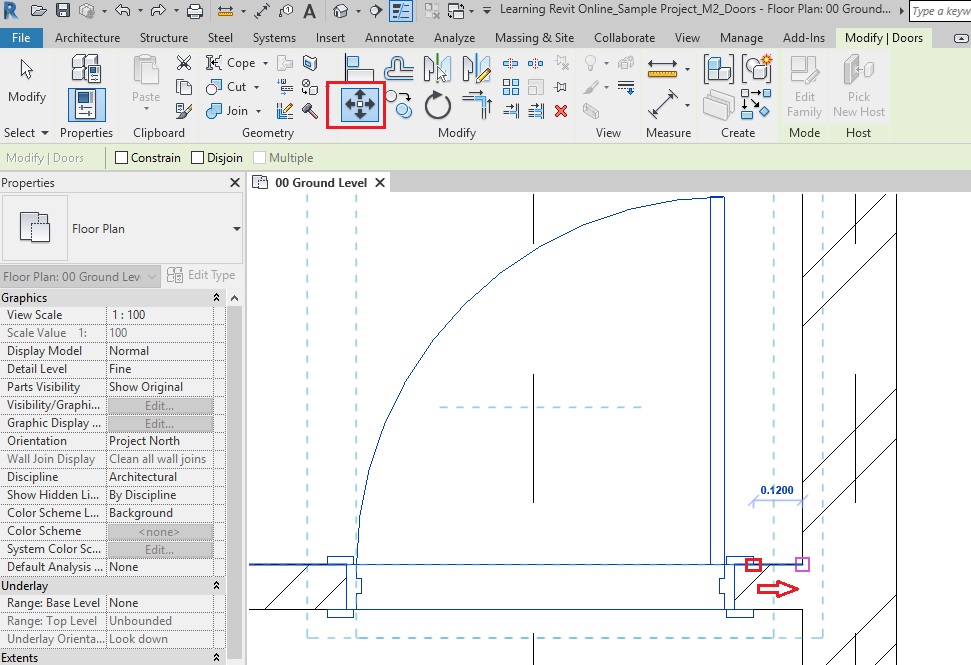
  17. Now, for this door, we would like to position the right door frame attached to the right wall. To do this, the best way would be to use Move tool.
  18. Use Move Tool to adjust the position of the door:

    • Go to Modify tab -> Modify panel -> Move
      • Alternatively, use “MV” as a keyboard shortcut.
    • Click on the edge of the right door frame as the base point.
    • Click on the edge of the wall where the door frame needs to be moved.

After the door has been moved, click Esc to end the Move tool.

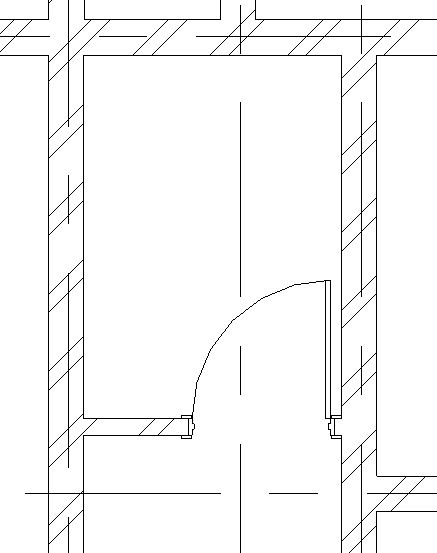
  • Now, repeat step 10 to place the door type “Door_Single Panel_0.9 x 2.1” as shown below. M2 Doors15
  • Adjust the position of the door on Grid K using the Move tool as shown in step 18 to align the door frame with the wall.
  • Now, the door on Grid I is exactly at the same parallel position as Grid K. To align both of these doors, use Align tool.
  • Use Align tool to adjust the position of the door:

    • Go to Modify tab -> Modify panel -> Align
      • Alternatively, use “AL” as a keyboard shortcut.
    • Click on the center line of the door on Grid K to set it as a reference.
    • Now, click on the center line of the door on Grid I to align with the reference.M2 Doors16
    • Both doors are now aligned with each other.
    • Click Esc to end the Align tool.
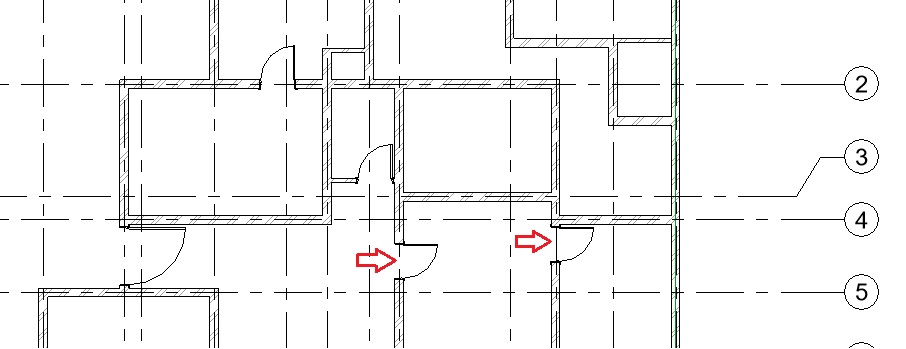
  • Using the methods shown above in step 10, 15 and 18, place doors with door type “Door_Single Panel_0.9 x 2.1” as shown below:M2 Doors17
  • Navigate to a 3D view to see all the doors in 3D.M2 Doors 18
  • After completing all the steps above, Save As your project as “TutorialDoors_Output_LearningRevitOnline.rvt”.

  • More References:

    • After placing the door, if you would like to move it to another wall, use ‘pick new host’ tool to move the door.
    • If you would like to create your own custom family for the door, it is advised that you first familiarize yourself with basic family editing tools covered in later sections of this course. However, if you are already familiar with them, you can create a custom door as guided by this Video Tutorial: How to create a door family presented by Brett Grinkmeyer.

    Tutorial: Modeling walls using CAD reference

    Make sure that you have completed the Tutorial Import a CAD drawing and Modelling Basic Walls, before moving on with this tutorial.

    Tutorial Objective:

    In Modelling Basic Walls chapter, we learnt about modelling basic walls, Trim/Extend Tools and using dimensions for modeling purposes. Please make sure that you are familiar with these tools as well as how to Import/Link a CAD drawing, before starting with this tutorial.
    In this tutorial, you will learn,

    Sample Problem:

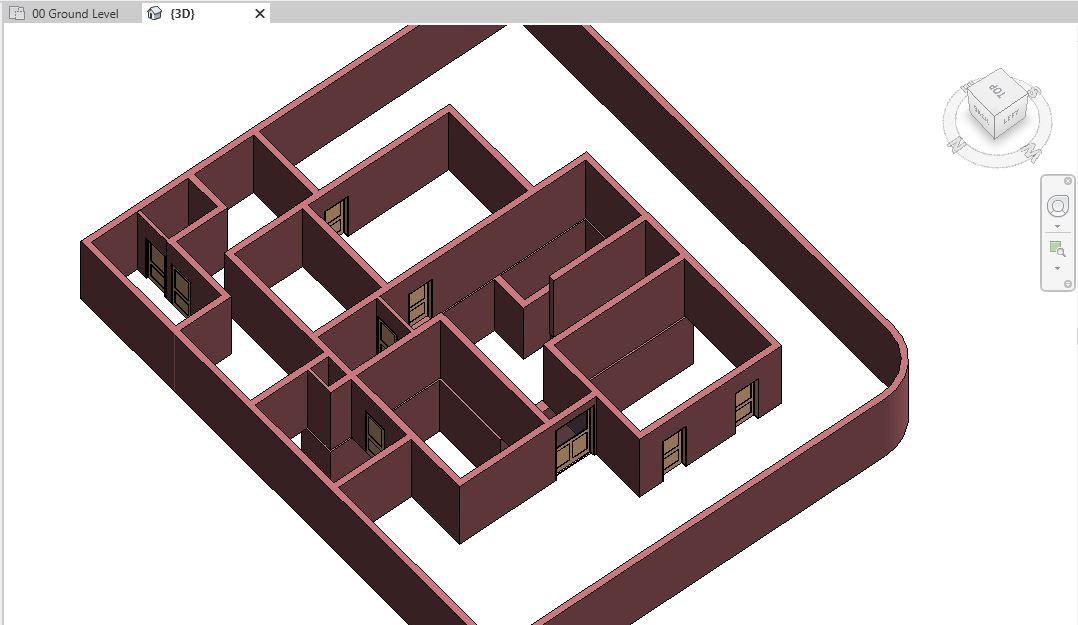
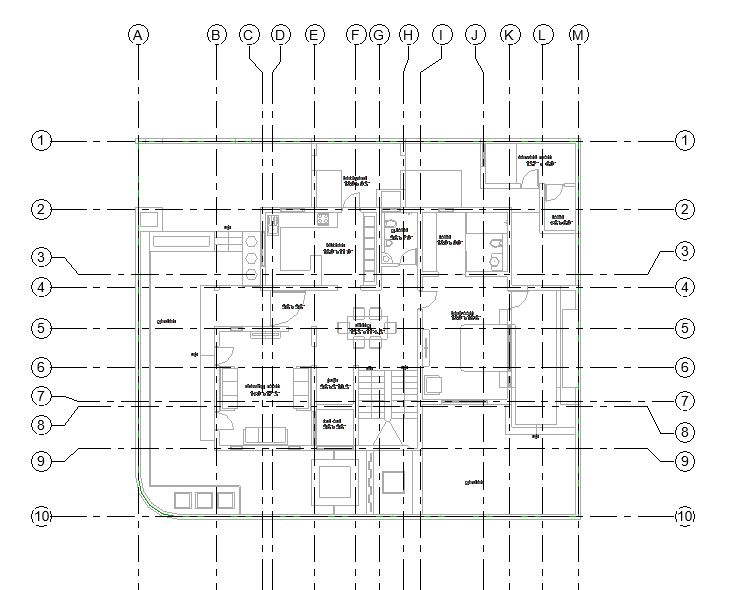
    • Add walls for the Ground Floor of the sample project as shown below. Use the  linked/imported CAD drawing “Ground Floor Layout_For Import.dwg” as reference. (as imported in previous chapter Import a CAD drawing).
    M2 Import wall Tutorial.JPG
    Fig 1. Walls in the Ground Floor Layout of the Sample project

    Sample Files required for this tutorial:

    If you do not have the following files, please download them from here.

    1. “TutorialWallsCAD_Input_LearningRevitOnline.rvt”
    2. “Ground Floor Layout_For Import.dwg”

    Solution:

    1. Open ‘TutorialWallsCAD_Input_LearningRevitOnline.rvt’ in Revit. This project file already contains “Ground Floor Layout_For Import.dwg” imported into the floor plan view of  “00 Ground Level”. It also contains the basic wall types required for the project.
    2. Navigate to the floor plan of  “00 Ground Level”. Notice the Imported CAD drawing in the view.
    3. Now, before modelling walls, let’s hide the layers of the CAD drawing which are not necessary for us at the moment.
    4. To hide layers of the CAD file:

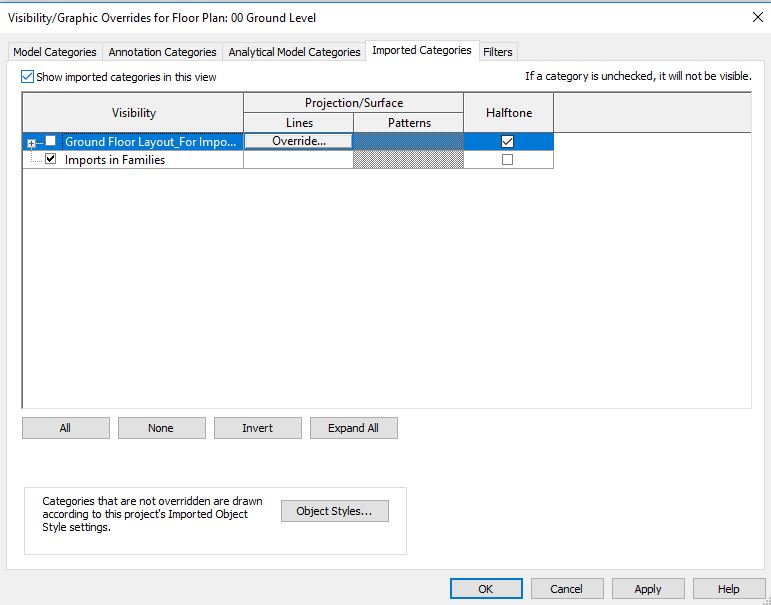
      • Go to View tab -> Graphics panel -> Visibility Graphics -> Visibility Graphics Override dialog box will appear.
        • Alternatively, use “VG” as a keyboard shortcut.
      • Go to Imported Categories tab.
      • Expand the row with the name of the CAD file:  Ground Floor Layout_For Import.dwg
      • The list of all layers available are present.
      • Turn off the checkbox for layers you do not need. For example, furniture layer with the name “FUR”. M2 Import wall 8
      • Say OK.
      • You will notice that the elements present in the FUR layer (Furniture) is turned off in the drawing area.
    5. If you do not know which elements are in which layer, you can also use Query tool to identify and hide the layers.
    6. To query a CAD file:

      • Select the CAD file in the drawing area.
      • Under Modify tab-> Import Instance panel -> select Query
      • Select the part of the CAD file for which you would like information. For example, select the text in the Grid bubble of the CAD file as shown below. M2 Import wall 9
      • Import Instance Query dialog box will appear showing the information of the selected element.
      • Choose “Hide in View” to hide the shown layer from the drawing area.
      • Continue to make further queries, if you like.
      • After completing, Click Esc to end the Query tool.
    7. Using Steps 4 and 6, turn off all layers except layer “wall”(for walls) and “dw”(for doors and windows). M2 Import wall 10
    8. Now, let’s create the walls of the kitchen room between Grid C-2 and G-4.
    9. First, we will have to know the wall thickness/wall type required.
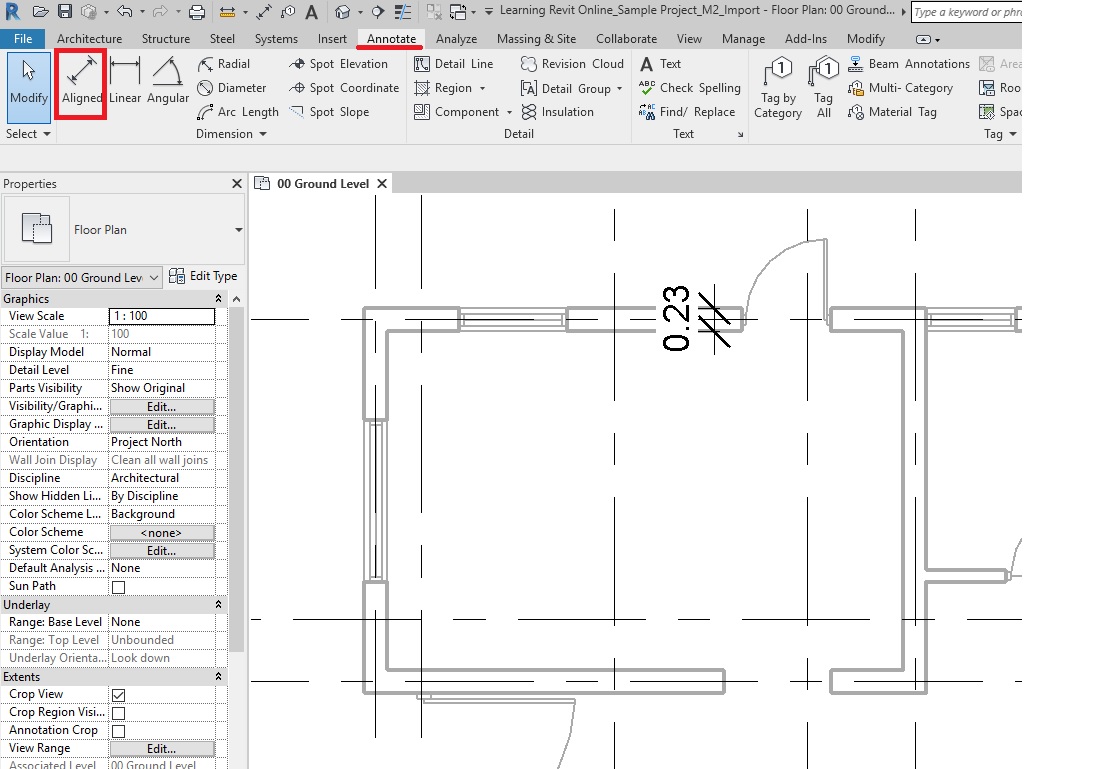
    10. Use dimension tool to know the wall thickness.
    11. To place a dimension:

      • Go to Annotate tab -> Dimension panel -> Aligned
        • Alternatively, use “DI”as a keyboard shortcut.
      • Click the line (of the CAD file) at the face of the wall.
      • Click on the other face of the wall for which dimension is needed.
      • Click in an empty space to place the dimension.
      • In this case as shown below, the wall thickness is 230mm/0.23m M2 Import wall 11
    12. Now, there are two ways to model walls. One is to sketch the wall in a rectangular/striaght line shape snapping on the CAD lines. The other is to use ‘Pick line’ tool. Let’s learn both.
    13. At this point, ignore the openings for Doors and Windows. When Doors and windows are modeled, openings will be made automatically by Revit in the walls.
    14. To sketch walls by snapping on the CAD lines:

      • Click Architecture tab -> Build panel -> Wall drop-down -> Wall: Architectural
        • Alternatively, use keyboard shortcut ‘WA’.
      • From the Type Selector, select ‘230mm Brick Masonry’ wall type.
      • From the Draw panel, select Rectangle as shape.
      • On the options bar, select Location Line as the Core Face Exterior as we want to match the exterior brick face of the wall to the outer rectangle in CAD. (Learn more about Location Line here).
      • On the options bar, Set the Height constraint to “01 First Floor Level”.
      • Enter the start and end point of the rectangle by snapping on the CAD lines as shown below.M2 Import wall 12
      • The rectangular wall has been created.
    15. Let’s model walls between Grid B-5 to E-9 using ‘Pick Lines’ tool.
    16. To model walls using Pick Lines tool:

      • Click Architecture tab -> Build panel -> Wall drop-down -> Wall: Architectural
        • Alternatively, use keyboard shortcut ‘WA’.
      • From the Type Selector, select ‘230mm Brick Masonry’ wall type.
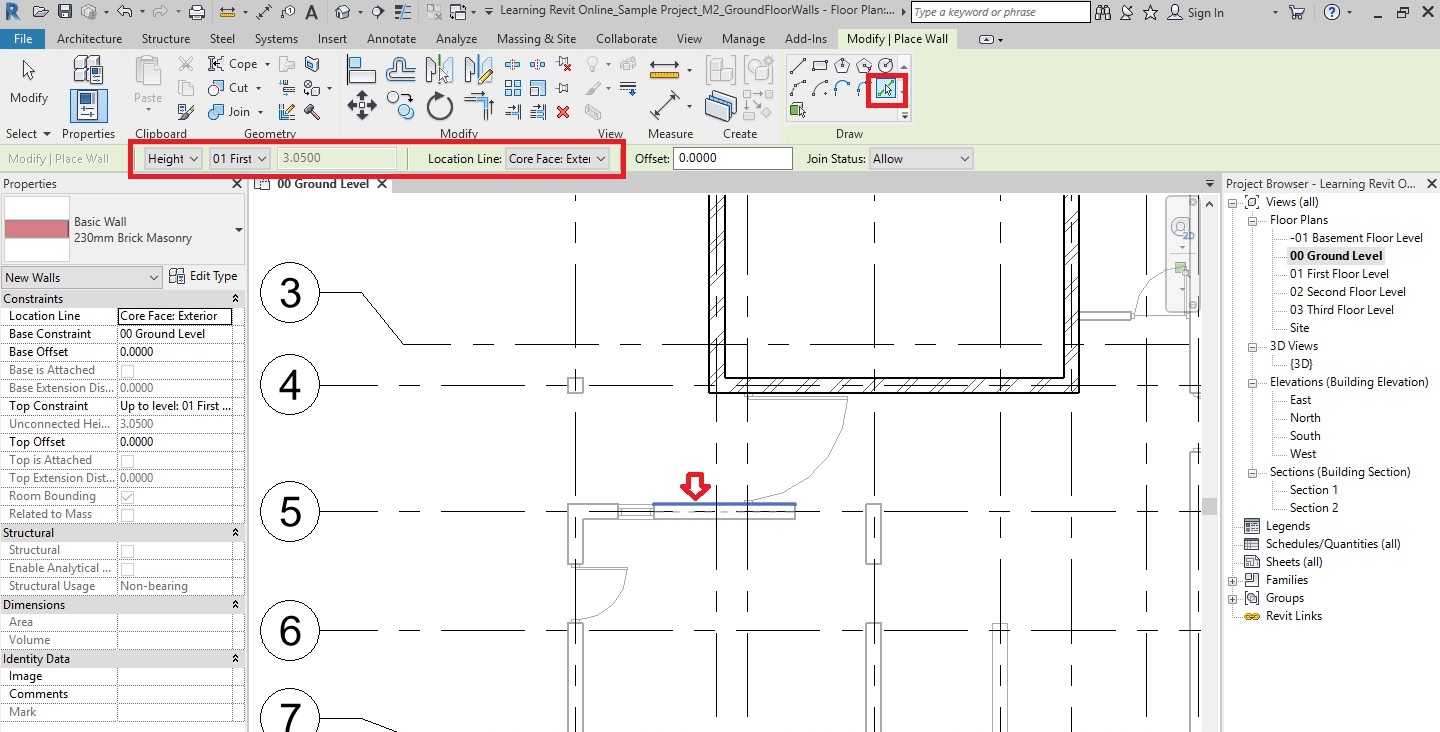
      • On the options bar, select Location Line as the Core Face Exterior as we want to match the exterior brick face of the wall to the outer rectangle in CAD. (Learn more about Location Line here).
      • On the options bar, Set the Height constraint to “01 First Floor Level”.
      • From the Draw panel, select ‘Pick Lines’ tool.
      • In the drawing area, select the edge/line of the CAD file as shown below where you would like to place a wall. A blue dotted reference line will be shown while you try to select the line – to show in which direction the wall will be placed. Keep your cursor towards the direction where you want to place the wall and then when the dotted reference is showing correctly, click to place the wall. M2 Import wall 14
      • The wall has been placed of the length equal to the line selected.
      • Similarly, select lines/edges in all four directions of the room – as shown below.
        • TIP: . In CAD, lines that you pick may not represent the actual length of the wall. Instead of picking multiple lines and create more instances of the walls along the length of the wall, use Trim/Extend tools to reduce the number of Instances.M2 Import wall 15
      • Using Trim/Extend to Corner tool connect all four walls in a rectangular shape.
        • Go to Modify Tab -> Modify Panel -> select Trim/Extend to Corner
          • Alternatively, use keyboard shortcut ‘TR’.
        • Click on the two walls between which a L Corner is needed to be created.
      • A rectangular wall between Grid B-5 to E-9 has been created.M2 Import wall 16
    17. Now, let’s create more walls between Grid G-2 and K-4.
    18. Using Pick Lines tool (as shown in step 16), create walls of 230mm wall type on vertical Grid I and K as shown below.M2 Import wall 17
    19. Using Trim/Extend to Corner tool connect the wall on Grid 2 with Grid K.
      • Note on Best Practice: Now, instead of creating an additional horizontal instance on Grid 2, it is better to use Trim/Extend to Corner tool to extend the length of the wall to connect with the vertical walls added in the previous step 18.
    20. Using Pick Lines tool (as shown in step 16), create walls of 230mm wall type on horizontal Grid 3 and 110mm wall type on the partition wall located slightly above Grid 3 as shown below.M2 Import wall 18
    21. Using Trim/Extend Multiple Element, extend these walls towards the vertical wall on Grid I.
    22. To Trim/Extend Multiple Element:

      • Go to Modify Tab -> Modify Panel -> select Trim/Extend Multiple Element
      • Click on the vertical wall on Grid I to define the border for extension.
      • Click on the horizontal walls around Grid 3 that needs to be extended.
      • A Tee-Junction has been created between these walls.
      • Click Esc to end the tool.M2 Import wall 19.JPG
    23. To draw other walls on the Ground Floor layout as shown below, use either the sketch walls (as shown in step 14) or Pick Lines tool (as shown in step 16). Reduce the number of instances by using Trim/Extend tools. M2 Import wall 20.JPG
      • TIP: Switch to “Shaded” visual style to clearly see where the walls have been already modeled.
        • Go to View Control Bar -> Visual Style -> Graphic Display Options -> ShadedM2 Import wall 21.jpg
    24. After completing modeling all walls, you may choose to hide the imported CAD file to see the Revit model clearly.
    25. To hide the imported CAD file,

      • Go to Visibility Graphics (“VG”as a keyboard shortcut).
      • Go to Imported Categories tab -> Select the Imported CAD file and turn off the checkbox beside the name of the CAD file.M2 Import wall 22.JPG
      • Say OK.
    26. The CAD file is now hidden from the view. If you want, you can repeat the step 25 and turn on the checkbox in the visibility graphics to unhide the imported CAD file.
    27. After all the walls are created and if you do not need the imported CAD file, you may select and delete it from the project.
      • TIP: If you have linked your CAD file, then you may unload the link by going to Insert -> Manage Links -> CAD Formats -> Unload. When you need the file again, you can Reload it in the project. If you are sure that you do not need the linked file again, then you can also remove it instead of unloading it.
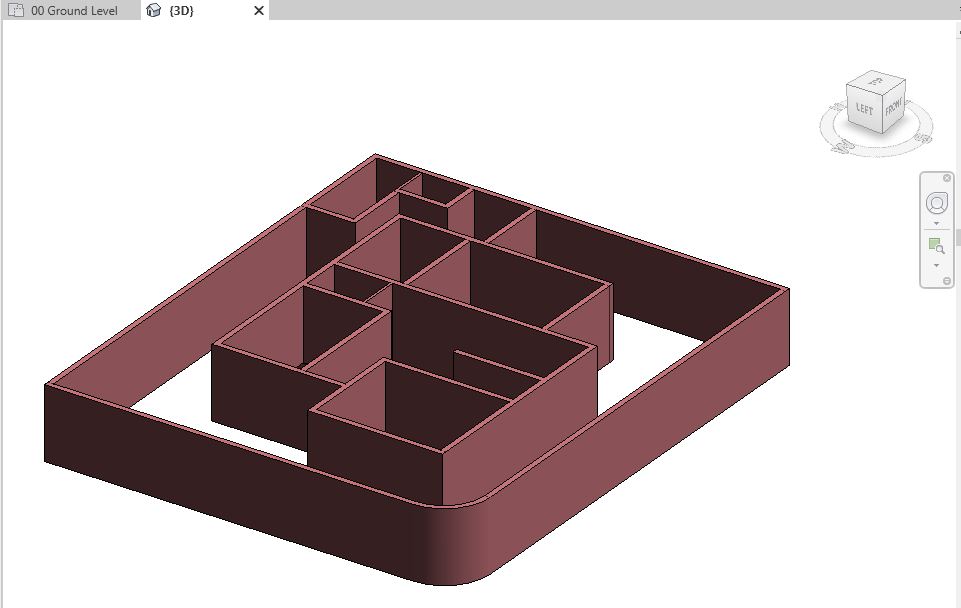
    28. Navigate to a 3D view to see all the walls in 3D. M2 Import wall 23.JPG
    29. After completing all the steps above, Save As your project as “TutorialWallsCAD_Output_LearningRevitOnline.rvt”.

    More References:

    Tutorial: Import/Link a CAD drawing

    About Using CAD drawings in Revit

    Some architects like to begin their design in CAD software tools. CAD drawings are then imported/linked in Revit to be used as references/underlay. REVIT model geometry is then built by tracing over elements in CAD file. Another popular reason to import CAD files into Revit is to use them for detailing purposes. If you already have some details drafted in CAD, you may import them in Drafting view and use them in Revit.

    You can either import a CAD file or you can link it. If you expect the CAD file to change, it is best to link it. If the CAD file is revised, then you can simply reload the linked files in Revit and see those changes. However, if you do not expect the CAD file to change, it is best to Import it. Importing a CAD file will increase the size of the Revit project file, but in turn will use less memory.

    Tutorial Objective:

    In this tutorial, you will learn,

    Sample Problem:

    • Link a CAD file containing the Ground floor layout of the sample project into Revit and place it on the “00 Ground Level” Floor Plan as shown below.
    M2 Import Tutrial.jpg

    Files required for this tutorial:

    If you do not have the following files, please download them from here.

    1. “TutorialImportCAD_Input_LearningRevitOnline.rvt”
    2. “Ground Floor Layout_For Import.dwg”

    Solution:

    1. Make sure that you have the CAD file “Ground Floor Layout_For Import.dwg”  and have prepared it as per the tips in step 2.
    2. Prepare CAD file before importing:

      Open your CAD program and make sure you have done the following:

      • Have only those geometries/layers in the CAD file which are necessary for you to use in Revit (this will reduce the file size and the memory required in Revit). You may also choose to Freeze the layers which are not required.
      • Many CAD users like to put layouts, elevations, sections, etc all in one CAD file. Do not crowd multiple drawings in one CAD file while importing in Revit. For example, if you are importing a layout drawing of a particular floor, try to have only that layout in the CAD file. If necessary, copy the geometry you would like to import and paste it into a new CAD file, to avoid any unnecessary references.
      • Purge your file before importing.
      • Check if drawing units and file units are consistent.
      • If you need Xrefs, then bind them in your drawing. If you do not need them, unload/remove them.
      • Copy the original file before modifying for import. Just in case, if you need to get back to the original version.
      • Open the tutorial file ‘TutorialImportCAD_Input_LearningRevitOnline.rvt’ in Revit. This project file already contains model geometry for basement floor, grids, levels and section views.
      • Navigate to the floor plan of  “00 Ground Level”.
      • Go to Insert tab -> Link -> Link CAD (If you would like to import a CAD file not link it, you may chose to go to Insert tab->Import-> Import CAD)
      • A Link CAD Formats dialog box will appear. Use following Settings:M2 Import 1
        • Check the “Current View Only” checkbox if you want this CAD file to be visible only in the view it is being imported (Ground Level Floor Plan). If you do not check this box, the CAD file will appear in all views, including 3D views.
        • Colors: Preserve (if you want to preserve the colors of the layers in CAD file).
        • Layers: All (If you choose to import only visible layers in CAD or choose Specify option if you would like to import only selected layers. The selection option will appear during the import process).
        • Import Units: “Ground Floor Layout_For Import.dwg” used for this tutorial has been created in Imperial Units (Inches) while the model in Revit is being created in Metric Units. To import this file correctly, choose “Inch” in the Import units.
        • Positioning: Auto-Center to Center (this will place the center of the CAD file to the center of the Revit view). Choose other options if you would like to place the CAD file Origin-Origin / By Shared Coordinates.
        • Place at: 00 Ground Level is seelcted by default as we are trying to import the CAD file in the active view.
      • After selecting all the Settings as above, click Open. This will import the CAD file in the view.
    3. However, note that CAD file imported is not at the correct position.M2 Import 2
    4. To move the CAD file to the right position, use Move tool.
    5. To Move,

      • Select the object (in this case, the imported CAD file).
      • Go to Modify panel -> Modify -> select Move tool.
        • Alternatively, use “MV” as a keyboard shortcut.
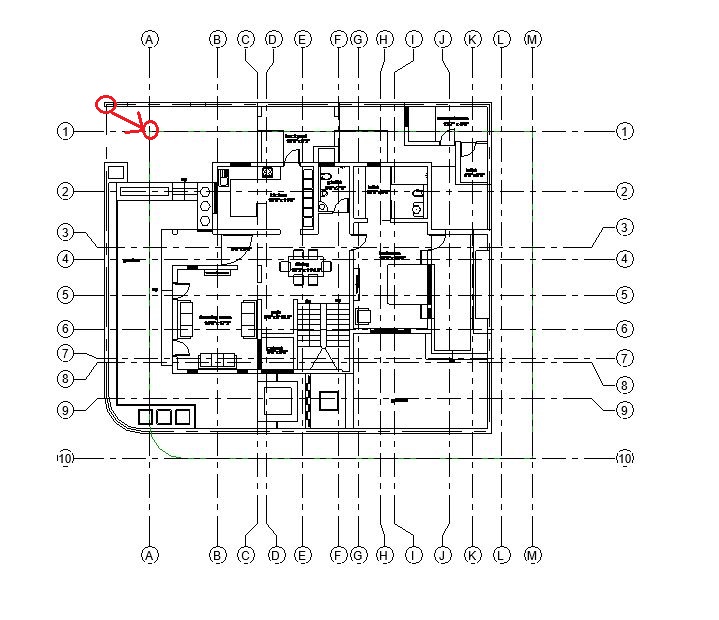
      • Click to enter move start point. In this case, it would be the top left corner intersection of the center line in the CAD file. This will be the base point for moving the CAD file.
      • Click to enter move end point. In this case it would be the intersection of Grid 1-A. M2 Import 3
      • Click Esc to end the Move tool.
    6. Once the position of the CAD file is correct, it is best to PIN it. It will prevent you to move/ delete the file by mistake.
    7. To Pin the CAD file:

      • Select the CAD file.
      • Go to Modify panel -> Modify -> select Pin tool.
        • Alternatively, use “PN” as a keyboard shortcut.
      • The CAD file is now pinned.
      • Click Esc to end the Pin tool.M2 Import 4
        • NOTE: If you would like to Unpin the CAD file,
          • Select the CAD file.
          • Go to Modify panel -> Modify -> select UnPin tool.
            • Alternatively, use “UP” as a keyboard shortcut.
          • The CAD file will be unpinned.
    8. To give the visibility of an Underlay for the CAD file (in order to avoid confusion between Revit model geometry and visible geometry of CAD file), the imported geometry can be set to halftone or some of the layers can be turned on/off.
    9. To control the visibility of the CAD file:

      • Go to View tab -> Graphics panel -> Visibility Graphics -> Visibility Graphics Override dialog box will appear.
        • Alternatively, use “VG” as a keyboard shortcut.
      • Go to Imported Categories tab.
      • Check the checkbox for halftone.
        • TIP: To turn on/off particular layers, use checkbox besides the layer names.M2 Import 5
      • Click Ok.
      • Note that the CAD file in the drawing area is now grey/halftone. M2 Import 6
    10. As we have linked the CAD file, it will be possible to see the changes if the CAD file is updated by reloading it.
      • Go to Insert tab -> Link panel -> Manage Links -> Manage Links dialog box will appear.
      • Go to CAD formats tab.
      • The linked CAD file will be listed here. Select the row of the linked CAD file.
      • Click Reload to reload the file from the same path.
      • Use Reload From… option if the path of the file is changed.
        • If you would like to unload the file from your project, choose Unload. You can at a later stage, use Reload to reload it in your project.
        • If you would like to completely remove the file from your project, choose Remove. You cannot Reload the linked CAD file, if you have removed it. You will need to link the file again. M2 Import 7
    11. After completing all the steps above, Save your project file.

    More References:

    Importing from other sources:

    Q&A

    Have any Questions? or Suggestions? or Feedback? Please feel free to Contact Us, we will get back to you as soon as we can.

    Tutorial: Basic Walls

    About Walls

    Unlike CAD tools, Revit elements are information rich and have behavioral patterns as if in a real construction site. For example, a Wall would understand that it must have a height that is connected to a particular level. It understands that it has a thickness, material and a function. All of this information can be given at the time of modeling in Revit or can later be changed once the information is available to you in the project. Windows and Doors, for example, can only be fixed in a wall and cannot be placed anywhere in the project. This is similar to a construction site.

    This tutorial is about creating basic walls with single structural layer. If you would like to learn about creating walls with multi-layers (adding layers for finishes, structure, membranes, insulation, etc.), please go to the tutorial Compound Structures.

    Tutorial Objective:

    In this tutorial, you will learn,

    Sample Problem:

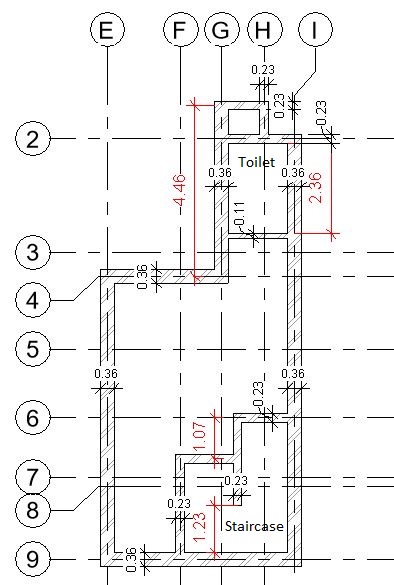
    Add basic walls in the sample tutorial project as shown below:

    M2 wall tutorial
    Fig 1. Walls in the Basement Floor level of the Sample Tutorial Project
    • Wall Base Constraint: -01 Basement Floor Level
    • Wall Top Constraint: 00 Ground Level
    • Wall Thickness: 360mm, 230mm and 110mm as indicated in Fig 1.

    Sample File required for this tutorial: “TutorialWalls_Input_LearningRevitOnline.rvt” (If you do not have this file, please download it from here.)

    Solution:

    1. Open TutorialWalls_Input_LearningRevitOnline.rvt in Revit. This project file already contains Grid lines.
    2. Navigate to the floor plan of “-01 Basement Floor Level”
    3. Click Architecture tab -> Build panel -> Wall drop-down -> Wall: Architectural
      • Alternatively, use keyboard shortcut ‘WA’.
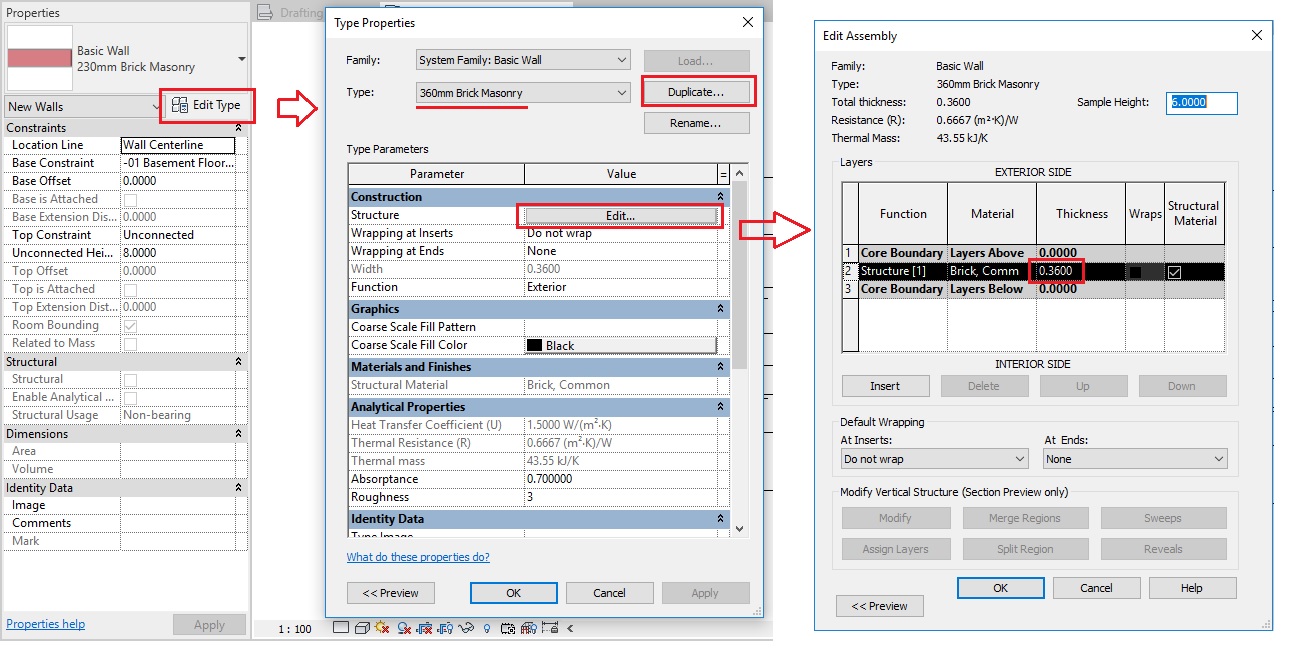
    4. As described in Tutorial objective, the project required three types of brick walls with thickness of 360mm, 230mm and 110mm. These types are not available in the project. Thus, let’s create them.
    5. Create a New Wall Type:

      • From the Type Selector, select a “Basic Wall – Generic – 200mm” Type.
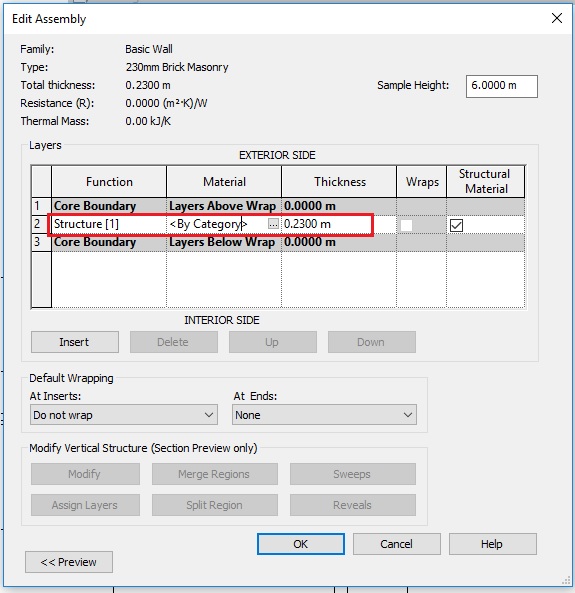
      • Go to Edit Type-> Type properties dialog box – > Duplicate -> Give a name ” 230mm Brick Masonry”  M2 Wall 4
      • Click Ok.
      • In the Type Properties dialog box, Go to Structure parameter -> Click  “Edit”.
      • Edit Assembly dialog box will appear.
      • Go to Row 2 which displays ‘Structure’ layer. Under thickness, add value 230mm / 0.23m
      • Under Material, click on the button with “…”sign and it will open the material browser. M2 Wall 6
      • Select the material “Brick” from the material browser.M2 Wall 5
      • Click OK to Material Browser.
      • Click OK to Edit Assembly dialog box.
      • Click OK to Type Properties dialog box.
      • Now, a new wall type “230mm Brick Masonry” has been listed under Type selector list.
    6. To create the wall types – “360mm Brick Masonry” and “110mm Brick Masonry”, begin by selecting a “230mm Brick Masonry” Type from the Type Selector. Repeat the process as shown in Step 5 and assign the specified thickness in the Edit Assembly dialog box. M2 wall 1
    7. Now, you have three wall types in the project as required. Let’s begin to model them.
    8. Place a Wall in a Rectangular shape:

      • Make sure “-01 Basement Floor Level” view is active currently and you see the Grid lines.
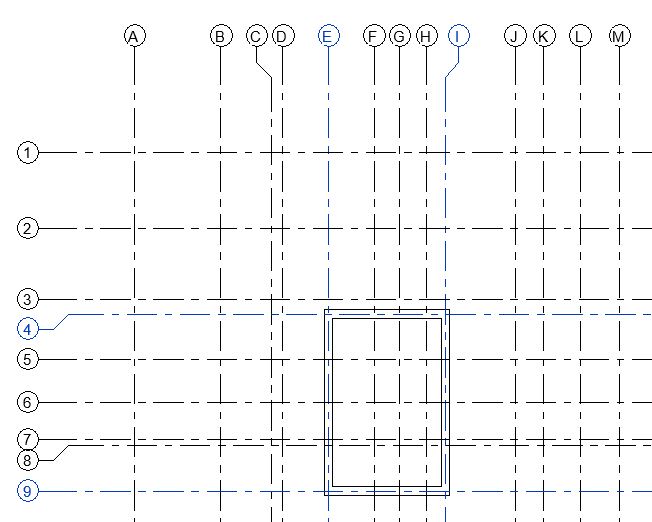
      • Let’s begin by drawing 360mm thick outer walls as shown in Fig 1.
      • Click Architecture tab -> Build panel -> Wall drop-down -> Wall: Architectural
        • Alternatively, use keyboard shortcut ‘WA’.
      • From the Type Selector, select ‘360mm Brick Masonry’ wall type.
      • From the Draw panel, select Rectangle as shape.
      • As the Basement level view is active currently, by default, the base of the wall is taken as the basement level. From the options bar, set the height of the wall by selecting the top constraint as the “00 Ground Level”.
        • TIP: If the base level/top level are different or has an offset in height, you can set these values from the Instance parameters in the Properties palette.
      • Set the Location Line of the wall as “Wall Center line” as in this case, we want the wall center to align with our Grid lines.
      • Now, click on the Grid intersection E-4 to set the starting point of the rectangle.
      • Next, click on the Grid intersection I-9 to set the end point of the rectangle.M2 wall 3
      • A rectangular wall is created. Click Esc twice to end the Wall tool.
    9. Place a Wall in a Straight Line shape:

      • Now, from Architecture tab -> Build panel -> Wall drop-down -> Wall: Architectural -> select Straight Line tool.
      • From the options bar, make sure Chain option is checked.
        • Note that the height of the wall is now automatically taken as Ground Level as Revit continues to use the previous setting.
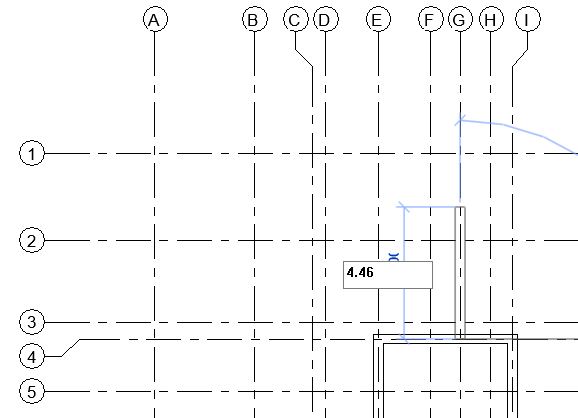
      • Click the starting point of the wall as the Grid intersection G-4
      • Move your mouse upwards towards the Grid G and enter on your keyboard the exact length of the wall which is 4.46m M2 wall 4
      • As the chain option was checked, Revit will allow you to draw more walls without ending the Wall tool.
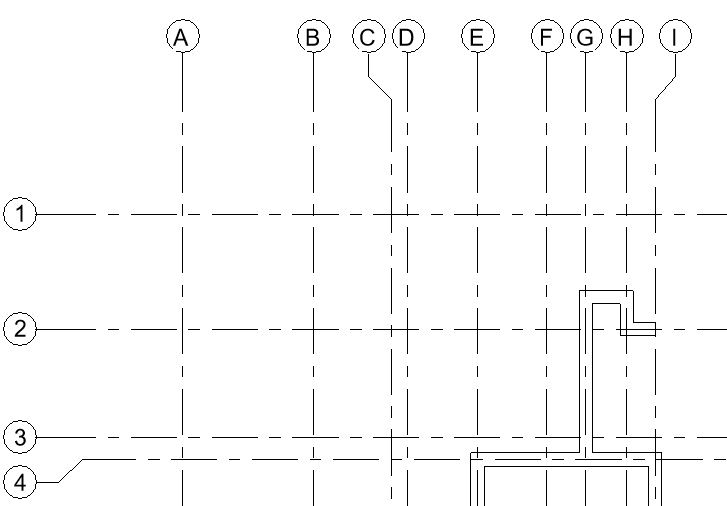
      • Click the next point of the wall horizontally till it meets Grid H.
      • Move your cursor downwards vertically and click the next point for the wall at Grid intersection H-2.
      • Click the next point for the wall at the Grid intersection I-2.M2 wall 5
      • Click Esc twice to end the wall tool.
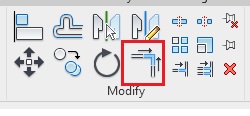
    10.  Now, we want to connect the vertical gap between Grid I-2 and I-4. One approach would be to draw another vertical wall. But more efficient approach would be to use Trim/Extend tool to close this gap. Use this tool when you want to create L-shaped corners.
    11. Trim/Extend to Corner Tool: 

      • Go to Modify Tab -> Modify Panel -> select Trim/Extend to Corner
        • Alternatively, use keyboard shortcut ‘TR’.M2 wall 16
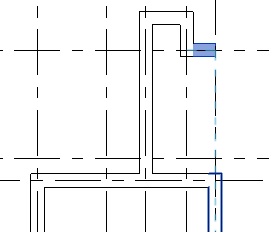
      • First click on the horizontal wall and then on the vertical wall as shown below to form a L-shaped corner at the Grid intersection I-2.M2 wall 6
      • Note that vertical wall has been extended and the horizontal wall has been trimmed to create a clean L-shaped corner joint.
      • Click Esc to end the Trim/Extend to Corner tool.
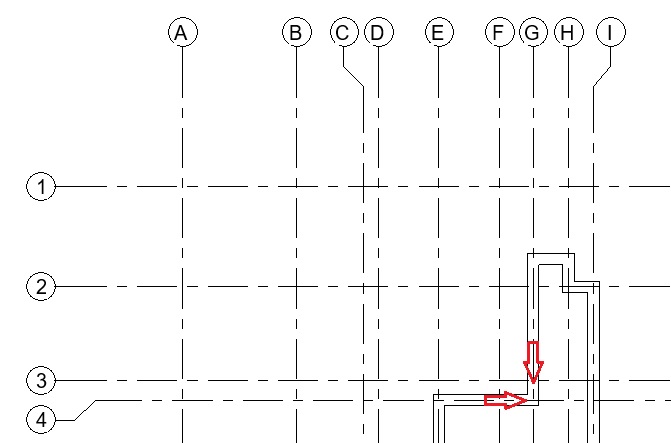
    12. Repeat step 11, to create a L-shaped corner at Grid intersection G-4 as shown below.M2 wall 7
    13. Now, as per Fig 1, the three walls between Grid G-I are of 230mm thickness. However, in our project, it is currently of 360mm thickness. To change a wall type after it is modeled, do the following.
    14. Change the Wall Type after Modeling walls: 

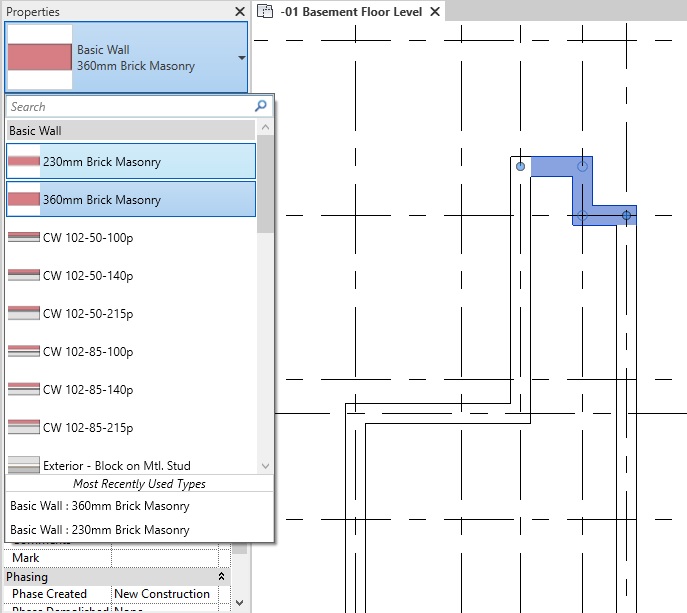
      • Select the walls as shown below.
        • TIP: Select one of the walls. Press Ctrl while you select other walls. This will add other walls to the selection group. Press Shift and click on a wall, if you wish to deselect it from the selection group.
      • Go to the Type selector and click on the Wall type “230mm Brick Masonry”. M2 wall 8
      • Click Esc to deselect the walls. Note that the selected walls have been converted from “360mm Brick Masonry” wall type to “230mm Brick Masonry” wall type.
    15. Now, let’s model some walls surrounding the staircase area as shown in Fig 1.
    16. Go to Architecture tab -> Build panel -> Wall drop-down -> Wall: Architectural -> select Straight Line tool.
    17. From the Type Selector, select the wall type “230mm Brick Masonry”.
    18. Using the process shown in step 9, draw walls between Grid intersection F-9 to F-6 and from F-6 to I-6. See image below. M2 wall 9
    19. Click Esc to end wall tool.
    20. Let’s create the middle vertical line of the staircase area as shown in Fig 1. To draw this wall as per its exact length, we will need some construction/reference lines. This can best be done in Revit using Reference Planes as described below.
    21. Using Reference Planes as Construction Lines:

      • Go to Architecture tab -> Work Plane panel -> Ref Plane
        • Alternatively, use keyboard shortcut ‘RP’.
      • Draw a horizontal plane as shown below. There is no need to be accurate about exact position/dimension of the plane. Draw it like you would draw a line.M2 wall 10
      • Click Esc twice to end the Ref Plane tool.
      • Select the reference plane you just created.
      • A temporary dimension will appear between the reference plane and the inner face of the parallel horizontal wall below.
        • TIP: Click on the blue dot on the temporary dimension to switch the witness line reference from the inner face of the wall to its center or outer face.
      • Click on the dimension value and change it to 1.23m between the reference plane and the inner face of the wall. Press Enter.M2 wall 11
      • Click Esc to deselect the reference plane.
    22. Now place a vertical wall in a straight line (the process as shown in step 9), starting from the mid point of the wall on Grid 6 and ending at the reference plane as shown below. M2 wall 12
    23. You can now select and delete (use Delete key on your keyboard) the reference plane as we do not need it further in our project.
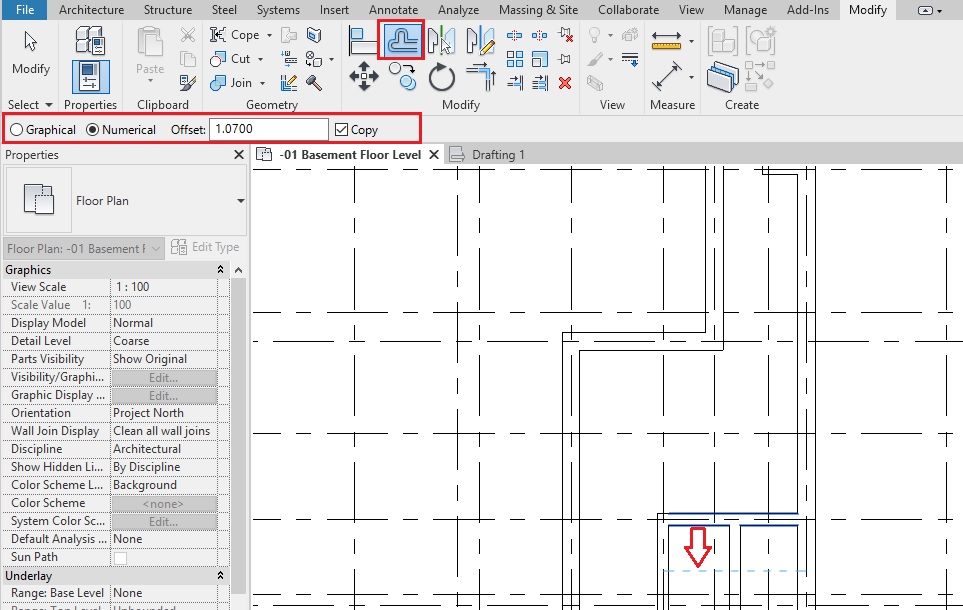
    24. As per Fig 1, we need a horizontal wall that is 1.07m away and parallel to the wall on Grid 6. One approach to do this would be to offset the wall at required distance as shown in the steps below.
    25. Offset a Wall:

      • Go to Modify Tab -> Modify Panel -> select Offset
        • Alternatively, use keyboard shortcut ‘OF’.
      • On the options bar, select Numerical. Give the Offset value as 1.07m.
      • On the options bar, keep the Copy option checked. This will ensure that a new instance of the wall is created at the offset distance from the wall you pick.M2 wall 13
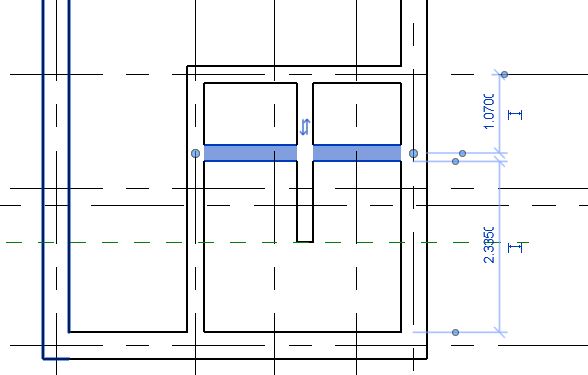
      • Hover your cursor on the wall at Grid 6 pointing in a direction you want offset to be created. Revit will show you a blue dotted line indicating where the wall will be placed. If this is correct, click where your cursor is. If not, move your cursor in the direction of your offset and click when the blue line displayed is at a correct location.
      • A copy of the wall picked (having the same type 230mm Brick Masonry and same length) is created at an offset distance of 1.07 m.M2 wall 14.JPG
      • Click Esc to end the Offset tool.
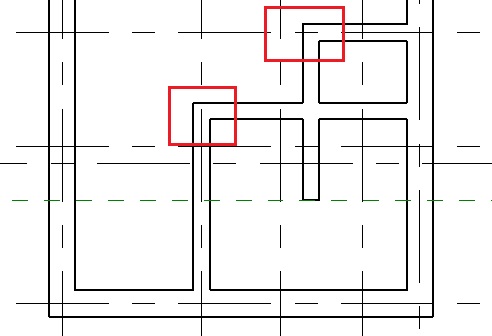
    26. Using Trim/Extend to Corner Tool (the process as shown in step 11), make L-shape corners as shown in the image below:M2 wall 15
    27. To create L-corners, the Trim/Extend to Corner tool is the most efficient modify tools available. However, we cannot use it to create T-junctions as we would like to to do for the vertical wall in the middle. Thus, to do this, use Trim/Extend Single Element tool as shown in the steps below:
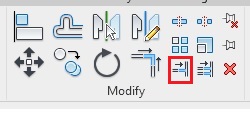
    28. Trim/Extend Single Element:

      • Go to Modify Tab -> Modify Panel -> select Trim/Extend Single ElementM2 wall 17
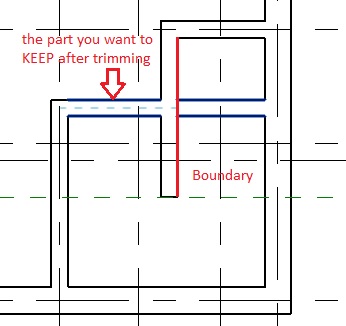
      • Click the face of the the middle vertical wall as the boundary for trimming.
      • Click on any point on the part of the horizontal wall that you would like to KEEP (not trim) – in this case, left of the vertical wall. M2 wall 18
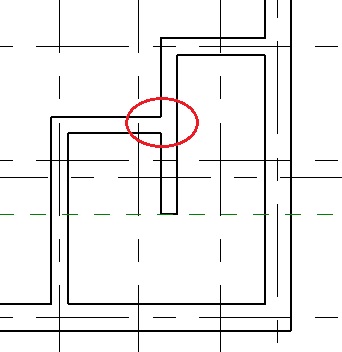
      • You will note that the horizontal wall has been trimmed and a T-junction has been created. M2 wall 19
      • Click Esc to end the Trim/Extend Single Element tool.
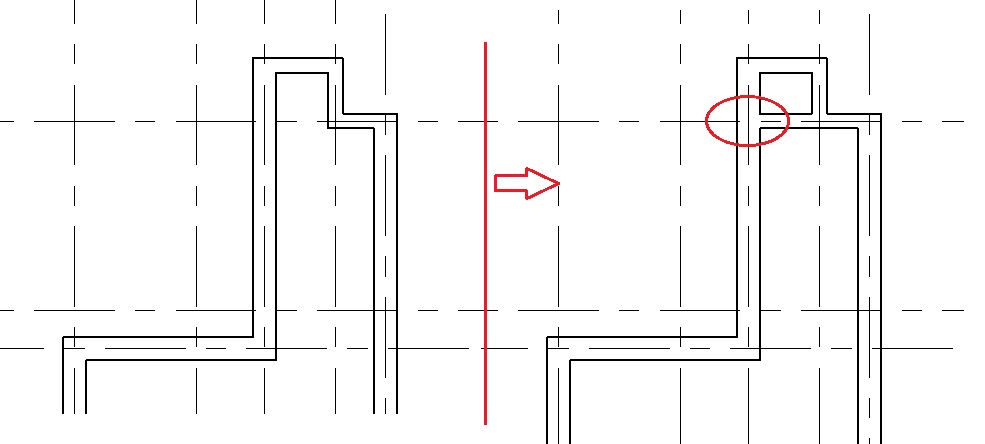
    29. Using the Trim/Extend Single Element tool as shown in the above step, create a T-Junction at the Grid intersection G-2 as shown in the image below:M2 wall 20
    30. As shown in Fig 1, a partition wall of 110mm thickness shall be created to enclose the toilet area.
      • One approach would be to offset a horizontal wall on Grid 2 at the specific distance (as shown in step 25) and then changing the wall type (as shown in step 14) of the offset wall from 230mm to 110mm as required.
      • Another approach would be to draw the wall and then use dimensions to place it at the exact location as shown in the steps below.
    31. Use Dimensions to position the wall:

      • Go to Architecture tab -> Build panel -> Wall drop-down -> Wall: Architectural -> select Straight Line tool.
      • Select wall type “110mm Brick Masonry” from the Type Selector.
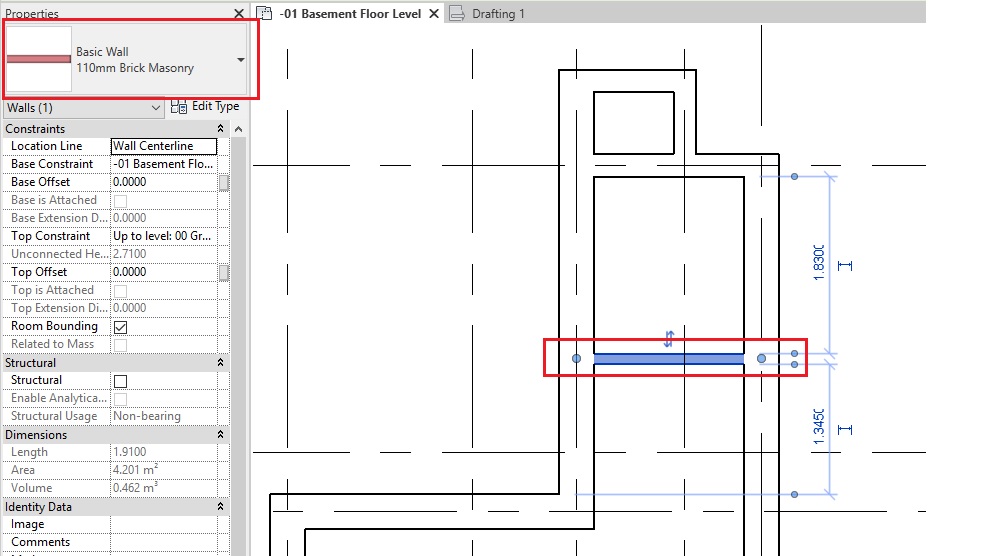
      • Draw a horizontal wall as shown below. Do not worry about exact position of the wall at the moment. Draw it at an approximate position.M2 wall 21
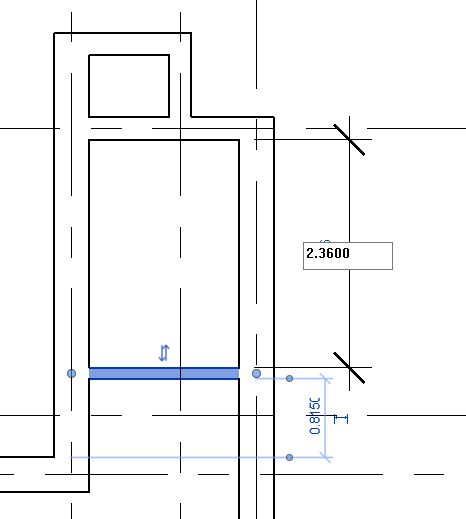
      • We need to position the wall at 2.36m from inner face of the upper wall (at Grid 2) to the inner face of the 110mm wall we have created.
      • Go to Annotate tab -> Dimension panel -> select Aligned Dimension
        • Alternatively, use keyboard shortcut “DI”
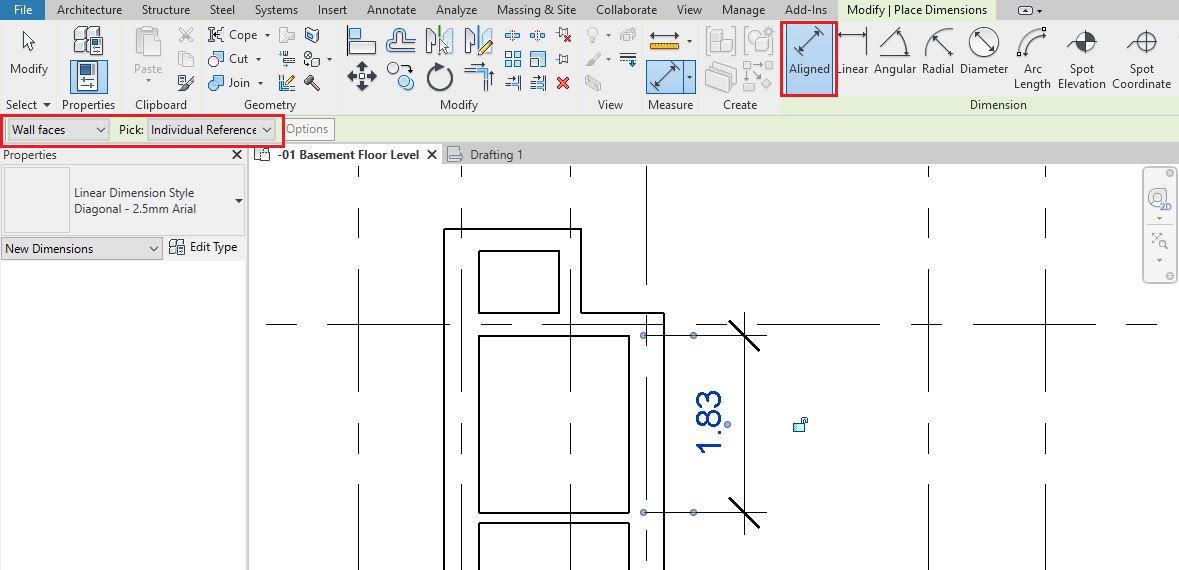
      • On the Options bar, select Wall faces and Pick option as Individual References.
      • In the drawing area, click on the inner face of the 110mm partition wall. Next, click on the inner face of the wall at Grid 2. Lastly, click where you want to place the dimension in the drawing ( Try to click somewhere in the middle of the dimension instead on its end as you might do in a CAD tool.)M2 wall 23
      • Click Esc twice to finish Dimension tool.
      • Click on the 110mm partition wall.
      • The dimension text will be highlighted as blue indicating that it is now editable.
        • Note: You cannot change the value of the dimension without selecting the element it refers to. Revit must know which element it should move if the dimension value changes. And thus, it activates the dimension only when the element is selected.
      • Click on the text of the dimension and change its value to 2.36m
      • The partition wall will move as per the dimension specified.M2 wall 24
      • Click Esc to deselect the wall.
      • You may select the dimension and delete it if you do not need it further.
    32. All the walls as per Fig 1 has been created.
    33. Navigate to a 3D view from your project browser to view your model in 3D. M2 wall 25
    34. After completing all of the above steps, Save As your project as TutorialWalls_Output_LearningRevitOnline.rvt”.

    TIPS

    • Learn more about Wall Location Lines here.
    • TIP: TAB to select multiple walls: To place/select walls simultaneously on an entire chain of lines, move the cursor over a line segment, press Tab to highlight them all, and then click.
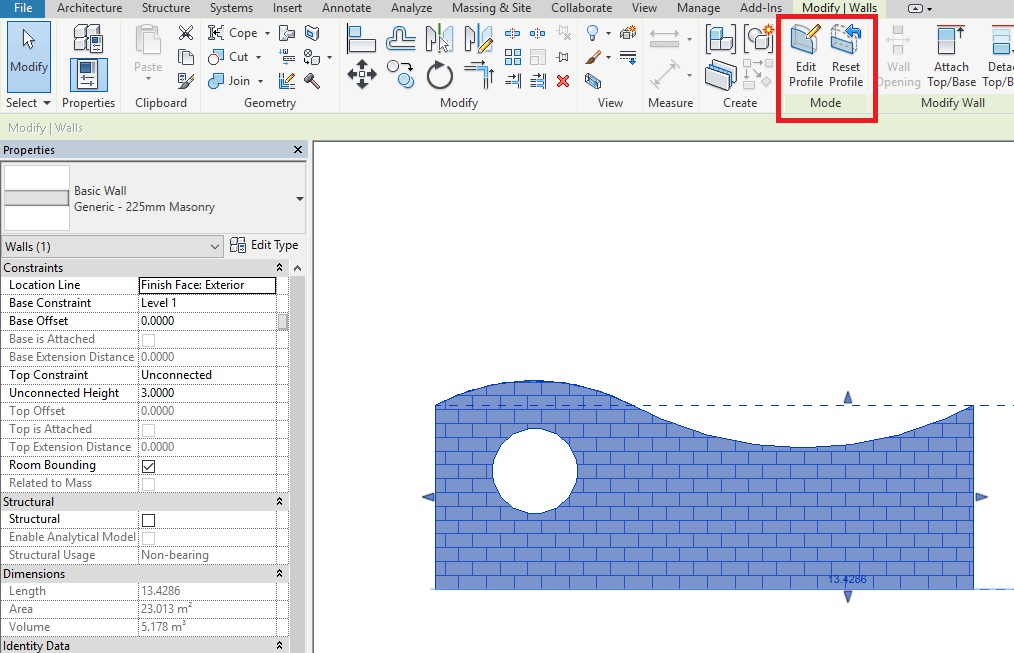
    • TIP: Edit Profile of the Wall: When you place a straight wall, it has a rectangular profile when viewed in elevations. If your design requires a different shape/profile, or for openings in the wall, you can edit the wall’s elevation profile in a section view or an elevation view. Learn more about this method here: How to edit a wall profile?
    Walls5

    Q&A

    Have any Questions? or Suggestions? or Feedback? Please feel free to Contact Us, we will get back to you as soon as we can.