A plan view is typically a view that cuts through a building model at a particular plane/level, and it wither looks up/down from that cut plane. The view range is defined by these horizontal planes that control the visibility of the elements in a plan view.
Learn about how to define view range, adjust view range settings, its impact on cuttable/non-cuttable elements and how the view range affects the display of elements based on whether they are in primary range or the view depth in this video tutorial – by Autodesk.
Q&A
Have any Questions? or Suggestions? or Feedback? Please feel free to Contact Us, we will get back to you as soon as we can.
To coordinate the design between different levels and different disciplines, plan of one level is put under the plan of another level. This can be done in Revit using Underlay tool. For example, you may want to put Ground Floor level as an underlay while modeling walls on the First floor level to see the alignment and position of the walls on the Ground Floor.
Learn about how to set the target position, eye elevation and crop regions in a perspective view. Also learn about how to modify elements and use temporary dimension to move model elements while in a perspective view with this video tutorial – by Autodesk
Learn about how to turn off the crop region of a perspective view, make the edits and place the view on a sheet with this video tutorial – by Autodesk
Learn about how to use a section box in a 3D view and control the visibility of the elements with this video tutorial – by Autodesk
Learn about how to display levels in 3D Views, change the position of level heads and navigate a 3D View with levels visible in this video tutorial – by Autodesk
Q&A
Have any Questions? or Suggestions? or Feedback? Please feel free to Contact Us, we will get back to you as soon as we can.
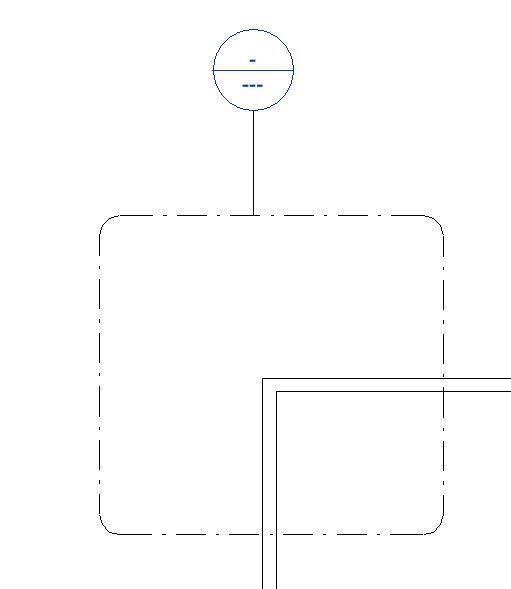
Callout views are used for creating an enlarged view of the part of an existing view. Callouts can be added to a plan, section, elevation or detail view. When you create a callout bubble with a callout tag, Revit crates a callout view. You can either create a view callout, a detail callout or a reference callout. Use a view callout when you want to provide more or different information about a part of the parent view.se a detail callout when you want to provide details about a part of the building model. Use multiple callout tags in different views to refer to one callout view.
Video Tutorials
Learn about how to create callout view with this Video Tutorial
Section views cut through your model and defined section plane. You can adjust the view depth and width of the section view to control the visibility of the elements. There are three types of section views: Building sections, Wall sections and Detail sections. Once created, each of them is listed in the project browser under different location. Building and wall section views display in the Sections (Building Section) branch and Sections (Wall section) branch of the Project Browser. Detail sections appear in the Detail Views branch.
Video Tutorials
Learn about how to create section views with this Video Tutorial – by Autodesk
Sometimes, you want to refer to an existing section view or drafting view to help the reader understand the view being displayed. In such cases, you can create a Reference section that does not create a new view but refers to the existing view.

 Learning Revit Online