Tutorial: Lines

About Lines

If you are a beginner in Revit or transitioning from CAD tools, lines are the best way to get started. Revit works a bit differently than other popular CAD tools. Thus, getting comfortable in sketching lines would give you a good feel about how the software works.

Many architects like to begin their designs by sketching lines in a layout for space planning. Once an overall single line diagram for the space plan is prepared, the design then moves on to defining walls, columns, grids, etc. In Revit, you can use this approach by starting your project with lines too and then build it up as the design evolves.

There are two types of lines in Revit –

  • Model Lines: Model lines are visible in all views and are mainly used as a reference for the model.
  • Detail Lines: Detail lines are visible only in the specific view it is drawn in and are typically used for annotation in detail drawings.

Tutorial Objective:

In this tutorial, you will learn to,

  • Create Model Lines in the project
  • Create straight line, rectangle and fillet arc lines

Sample Problem:

Sketch the site boundary line of the sample project using model lines as shown below:

  • The overall site boundary dimensions are 20.26m x 17.30m with 1.80m radius arc at the bottom left corner.
M2 Lines Tutorial
Fig 1. Site boundary line for sample tutorial project

Files required for this tutorial: “TutorialLines_Input_LearningRevitOnline.rvt” (If you do not have this file, please download it from here.)

Solution:

  1. Open the sample project file TutorialLines_Input_LearningRevitOnline.rvt
  2. From the Project Browser, navigate to the Floor plan view named “00 Ground Level”.
  3. First, we will begin by drawing site boundary lines as shown in Fig 1 above.
  4. Go to Architecture tab -> Model panel -> Model Line
    • OR type “LI”as a shortcut on the keyboard
  5. In the Modify| Place Lines tab, under the draw panel, you will see options for choosing different shapes to draw. Choose a straight line. Ensure “Chain”option is checked from the options bar.M2 LInes 1
  6. In the drawing area, click to enter line start point in your drawing area.
  7. Move your cursor in a straight horizontal direction.
    •  Revit will highlight tooltips. It will also display dimensions highlighted in blue which change when you move your cursor. They are known as listening dimensions, which gives you relevant references while sketching.
  8. In order to create a line with a specific dimension, type the length of the line (20.26m) from your keyboard. Press Enter. This will determine the end point of the line.M2 Lines 2
  9. As chain option is checked, the line tool is still active allowing you to continue to draw more lines from the last end point.
  10. Move your cursor downwards at 90 degrees to draw a vertical line and type on your keyboard the length of the next line (17.30m). Press Enter.
  11. As we want to create a rectangle, move the cursor in a horizontal direction towards the start point of the first line. This time, Revit will automatically detect the reference for the end point based on the parallel horizontal line that we first drew. It will also highlight the dimension 20.26m, same as we took for the first line. Click at the intersection highlighted. M2 Lines 3
  12. Now, move the cursor upwards in 90 degrees vertical and click at the start point of the first line to close the rectangular loop.
  13. Click Esc twice to end the Model Line tool.
  14. Next, we want to create a fillet arc of 1.8m radius at the bottom left corner of the rectangular site boundary as shown in Fig 1.
  15. Go to Architecture tab -> Model panel -> Model Line
    • OR type “LI”as a shortcut on the keyboard
  16. In the Modify| Place Lines tab, under the draw panel, you will see options for choosing different shapes to draw. Choose a fillet arc. Check the Radius option from the options bar and specify 1.8m as the radius value.M2 Lines 5
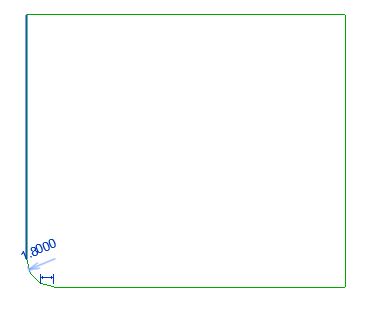
  17. Go to the drawing area. Click anywhere on the left vertical line. Next, click on the bottom horizontal line. A fillet arc of 1.8m will be created between these two lines. M2 Lines 6
  18. Click Esc twice to end the Model Line tool.
  19. After completing all of the above steps, Go to File -> Save As this project as “TutorialLines_Output_LearningRevitOnline.rvt

NOTE: As we have created the site boundary line using Model Lines, these lines are also visible in other views including 3D views.

Alternative Approach:

  1. Repeat Steps 1 to 4 from above.
  2. In the Modify| Place Lines tab, under the draw panel, you will see options for choosing different shapes to draw. Choose a rectangle.
  3. In your drawing area, draw a rectangle of an approximate size. Accuracy of the dimensions are not important at this stage.M2 Lines 7
  4. Now, let’s make this rectangle of the exact size as specified in the Fig 1.
    • NOTE: If you click on a vertical line, a horizontal dimension appears in the rectangle and if you select horizontal line, a vertical dimension appears. This might be strange for users who are accustomed to CAD. However, in Revit, the temporary dimensions appear as references to other objects nearby. It understands that if you are selecting a vertical line, you might want to move it either left or right for which you will need the reference of the horizontal dimension. Similarly, for horizontal lines, vertical temporary dimension appears considering that you may want to move the line upwards/downwards.
  5.  Select the left vertical line of the rectangle. Click on the text of the temporary dimension, change its value to 20.26m. Note that the line would move (stretching the rectangle accordingly). Similarly, select the top horizontal line. A vertical temporary dimension will appear between two horizontal lines, change its value to 17.30m and note that the line move accordingly while stretching the rectangle.M2 Lines 4
  6. Now, repeat steps 15 to 19 from the above method, to create a fillet arc at the bottom left corner.

TIPS:

  • TIP: Property Line: As this tutorial is to learn about Model lines, the site boundary has been drawn using Modeling Line tool. However, in reality, it is better to draw site boundary lines using the “Property Line” tool. This will automatically calculate the area of the property enclosed by property lines (which would be a smarter way to do it, right?) Learn more about property line here.
M2 Property Line

More References:

Following are some references from where you can learn more about drawing different shapes with the lines

Q&A

Have any Questions? or Suggestions? or Feedback? Please feel free to Contact Us, we will get back to you as soon as we can.

Tutorial: Levels

About Levels

Use the Level tool to define a vertical height or story within a building. Levels can be added or edited in a vertical view (either elevations or sections).

If you already have information about all the building story levels in your project, you may very well create them before you begin a project. If there are any changes later in the project, you can always come back and make these changes. In case, if you do not have information about all the levels, then it is necessary that you create at least one building story to begin your project. This makes it much easier to attach your walls and other building elements to the levels.

Tutorial Objective

In this tutorial, you will learn to,

Sample Problem:

Define Levels for the sample project as shown below:

  • Ground Level at Elevation Height +/- 00.00
  • Basement Level at Elevation Height -02.71m
  • First Floor Level at Elevation Height +03.05 m
  • Second Floor Level at Elevation Height +06.10m
  • Third Floor Level at Elevation Height +08.84 m

Files required for this tutorial: TutorialLevels_Input_LearningRevitOnline.rvt (If you do not have this file, please download it from here.)

M2 Level Tutorial Sample
Fig 1. Levels for the sample tutorial project

Solution:

  1. Open the sample project file TutorialLevels_Input_LearningRevitOnline.rvt
  2. From the Project Browser, navigate to an Elevation view.
  3. As the sample file was created from an existing architectural template (as shown in previous chapter Create a project file) two levels are part of the template by default.M2 Levels
  4. Note that Level 1 is at 0.00m elevation height currently. In our sample project, we need the “Ground Level” also at 0.00m. So, in this case, it will be enough just to rename the Level 1 to Ground Level.
    • TIP: Naming Conventions: Level names typically will be reflected in the name of the plan views in your project browser where they are sorted alphabetically. Thus, while naming the levels, it is recommended to use naming conventions that allow an alphabetical sorting order to easily find the levels and corresponding plan views. For example, 00_Ground Level -> 01_First Floor Level -> -01_Basement Level. Some users like to add a prefix of the elevation height of the level to the level name in order to sort them correctly. For example, 00.00 Ground Level -> +03.00 First Floor Level -> -03.00 Basement Level. Of course, these naming conventions will still depend on your project specifications and standards.
    • For this tutorial, we are using the floor numbering as the prefix to the level name in order to sort them correctly in the project browser. Thus, the naming convention will be “00 Ground Level”, “01 First Floor Level”, “-01 Basement Level” etc.
  5. Rename the Level:

    • Click on the Level 1 line. The text of the level symbol will be highlighted as blue indicating that it is now editable.
    • Click on the text ‘Level 1’ and replace the text with “00 Ground Level”.
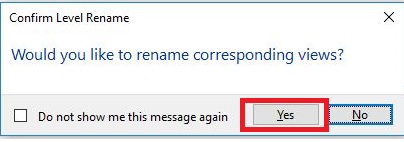
    • The Confirm Level rename dialog box will appear to confirm if the change in level name should be reflected in all corresponding views also? Say Yes to this message in order for all corresponding views to also have the same name as the level in project browser. M2 Levels 3
    • Notice that the Floor plan view named as Level 1 in the project browser is now named same as the level name.
  6. Now, Level 2 is at 4.00m by default. We would like to have the First Floor Level at Elevation Height +03.05 m. Thus, in this case, we will need to change the name as well as the elevation height of the Level 2.
  7. Repeat step 5 and  change the name of the Level 2 to “01 First Floor Level”.
  8. Change the Elevation Height of the Level:

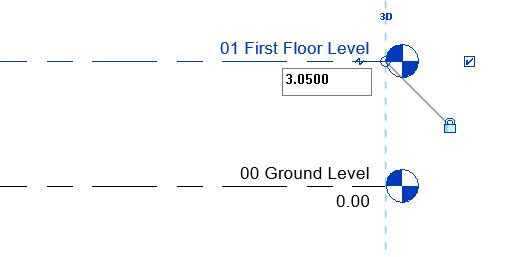
    • Select the Level 2 line, the elevation height value is highlighted as blue indicating that it is now editable. Click on the value and replace it with 3.05m and press Enter. Note that the level line moves to the specified height. M2 Level 8
  9. Next, let’s create a new level for the Basement  Floor at Elevation Height -02.71m
  10. Create a new level:

    • Go to Architecture tab in the ribbon -> Datum panel -> Level
    • Click to enter start point of the level line. Drag your cursor towards the end of the line and then click to enter the end point of the level line. The elevation height of the level need not be accurate at this point.
      • TIP: Take your cursor towards the start point of the Ground Level line and without clicking hover your cursor downwards. Revit will indicate a reference extension line with a dimension that moves with your cursor. At this point, you do not have to be accurate about the dimension. Just click the start point for your new level line at a random point on that reference extension. Similarly, select the end point of the line by referring to the position of the endpoint for Ground level line. After you have placed the level, you can change the elevation height exactly at specified value.M2 Level 9
    • Level 3 will be created in the drawing.
    • Click Esc twice to end the level tool.
    • As shown in step 5 and 8, change the name of this level line to “-01 Basement Floor Level” and elevation of the level to “-2.71”. M2 Level 10
    • Note that a new floor plan view with this level name is added in the project browser.
  11. Using the process shown in step 10, you can create other required levels in the sample project files. Alternatively, you can also use Copy tool to create other levels as shown below.
  12. Copy a Level:

    • Select the “01 First Floor Level” line.
    • Go to Modify|Levels tab -> Select Copy from Modify panel
      • Alternatively, use “CO” as the keyboard for shortcut
    • Keep the ‘Multiple’ option checked in the options bar to make multiple copies of that selected level.
    • Click on any point on ’01 First Floor Level’ line and move your cursor upwards.
      • A temporary dimension (in blue) will appear. You can either choose to graphically select the point where a copy needs to be placed, or type in the exact distance from the base point where you want to the copy to be placed.
    • Type “3.05”value on your keyboard to specify the exact distance between the two level lines. Press Enter after typing the value. This level will become our Second Floor level for the sample project.M2 Level 11
    • As the multiple option is selected, the Copy tool is still active and you can make more copies by moving your cursor upwards and typing the exact copy distance/graphically clicking a point on the screen where you want the copy to be placed. Use this tool to create one more copy of the level that will become our Third floor level for the sample project.
    • Pres Esc twice to finish the Copy tool.
    • Change the name of the levels and elevation height (using the process as shown in step 5 and 8) as below:
      • Name: “02 Second Floor Level” Elevation Height value: “6.10”
      • Name: “03 Third Floor Level” Elevation Height value: “8.84”
  13. Note that the level symbols of Basement, ground and first floor are blue whereas, second and third floor level line symbols are indicated as black. The difference is that for the second and third floor level lines which were created by copy tool, do not automatically generate a plan view in the project browser. Thus, the level symbol indicated this effect by the colour black. If you would like to create a plan view for this level, then follow the procedure as shown below.
  14. Create a Floor Plan View:

    • Go to View tab -> Create panel -> Plan Views drop-down, and then click on Floor plan.
    • In the New Plan dialog box, Select one or more levels for which you want to create a plan view.
    • Click OK.
  15. Now, after creating floor plan views for all levels, note the project browser. All floor plans are sorted alphabetically in order due to the naming conventions we used in the step 4. M2 Levels 13
  16. After completing all of the above steps save this project file (Go to File -> Save) as “TutorialLevels_Output_LearningRevitOnline.rvt

Tips

  • TIP: Add ± symbol in text: If you want to add plus/minus symbol in the text/name of the level,
    • Open character map from your Windows (Windows Accessories -> System Tools -> Character Map) -> Copy the plus/minus symbol from here -> Go back to Revit
    • Select the level line. Click on the name of level name -> Paste this symbol in the text where required. Click Enter.M2 Levels 1
  • TIP: Offset level symbol: For presentation purposes, sometimes if the level heads are too close to each other, you may require to offset the Level symbol for clarity. Learn the steps how to Offset a Level Line from Its Bubble here.
M2 Levels 4

More References

Q&A

Have any Questions? or Suggestions? or Feedback? Please feel free to Contact Us, we will get back to you as soon as we can.